Guide
Premium IPTV App: the Players That Read Your Login, Screen by Screen
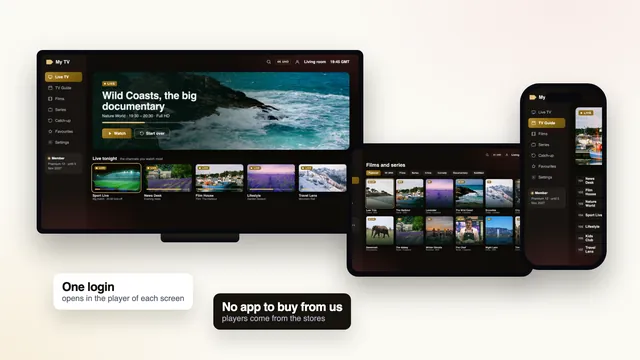
There is no premium IPTV app to buy from us, and you do not need one: the login in your welcome message opens inside player apps made by other developers, most of them free in the usual app stores. This guide matches a player to each screen in the home, shows how to tell a genuine app from a look-alike, explains why store versions beat files passed around forums and sets out which player features actually deserve the word “premium”.
Is there a premium IPTV app to download?
That surprises people, because a search for the phrase brings up app store pages before anything else. Those apps are players: empty readers that show whatever a login points them at. The channels, the programme guide and the films come with the membership; the app is only the window you watch them through.
The split works in your favour. A player you dislike can be swapped in five minutes without touching the membership, and the same details can sit in a different app on each device in the house. It also means the word “premium” on an app’s icon describes that app’s own paid extras. It never tells you what the app will play.
Which player suits which screen
The right choice depends on the device far more than on taste. This table pairs the usual screens in a British home with the players that read the login on them, at the time of writing.
| Device | Players that take the login | Where the player comes from | Worth knowing |
|---|---|---|---|
| iPhone and iPad | IPTV Smarters Pro; VLC for the M3U link | App Store | Handy for a second room or a quick look |
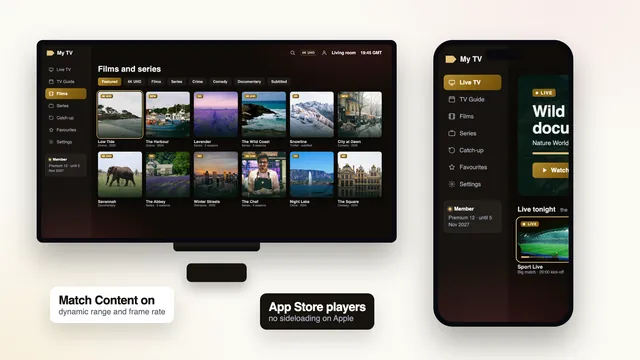
| Apple TV | IPTV Smarters Pro | App Store only | Switch on both Match Content options before judging the picture |
| Mac | IPTV Smarters Pro on Apple silicon; VLC | App Store for Smarters Pro | VLC plays the list but shows no guide grid |
| Android phone or tablet | IPTV Smarters Pro; VLC | Google Play | A quick way to confirm the details work while the big screen waits |
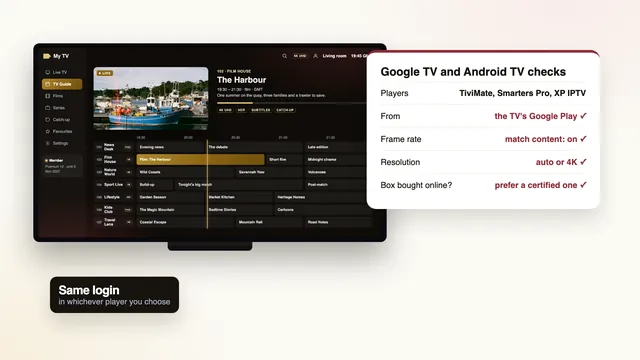
| Android TV and Google TV | IPTV Smarters Pro, TiviMate, Kodi with PVR IPTV Simple Client | Google Play | Look for a frame-rate matching option for live sport |
| Amazon Fire TV | IPTV Smarters Pro, TiviMate | For Smarters Pro, Downloader plus the address that comes in your welcome message | Sticks on Vega OS install from the Appstore only |
| Samsung (Tizen) and LG (webOS) | IBO Player or Smart IPTV; on some models, Smarters Pro | The TV’s own app store | The list is linked to a MAC address or device key the set displays |
| Windows PC | VLC; Kodi with PVR IPTV Simple Client | Each developer’s own website | Fine for a desk, less so for a lounge |
Apple devices
On iPhone, iPad, Apple TV and Macs with Apple silicon, IPTV Smarters Pro comes from the App Store. An Apple TV has no other source of apps, which keeps the choice simple. Before judging its picture, open Settings › Video and Audio › Match Content, then set both “Match Frame Rate” and “Match Dynamic Range” to on, so the box follows each programme instead of forcing one format on everything. The guide for iPhone, iPad and Apple TV goes further, including AirPlay.
Android, Google TV and Fire TV
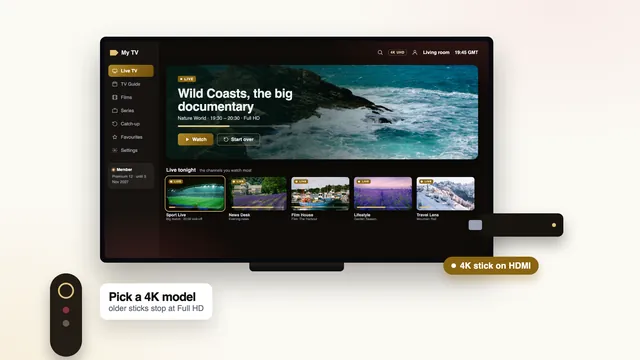
Android phones, tablets and televisions get their players from Google Play. On a television, TiviMate is built around a guide grid and a remote, and it is free with paid premium options; Kodi reads a list only once its “PVR IPTV Simple Client” add-on is in place. Fire TV is the odd one out: the Amazon Appstore does not carry Smarters Pro, so Downloader does the installing, as described further down. The Fire TV guide explains which sticks suit a 4K picture and which top out at Full HD.
Samsung and LG televisions
On Samsung and LG sets, Smarters Pro shows up in the store for some models and some countries only. The usual fallbacks are IBO Player and Smart IPTV, and both work from an identifier the television displays. Smart IPTV needs activating on every TV, once, before you upload the list on its website against the MAC address of the set. With IBO Player, the list is tied to that MAC address or to a device key instead. XP IPTV also accepts the login: check its store listing for your device. When nothing suits the set, plug a stick or an Android box into a spare HDMI port and use a player there.
Look-alike apps: check the developer before you install
Type “IPTV” into any app store and you will see dozens of icons with the same blues and the same play symbols, several of them borrowing the name of a well-known player with a word added or changed. Some are harmless copies. Others fill the screen with adverts, request access to contacts or files that a video player never needs, or push a “channel pack” of unknown origin.
The cure takes ten seconds: read the developer’s name under the app’s title before you tap Install.
- IPTV Smarters Pro is published as “Smarters Pro” by Tech Smarters Private Limited. A different developer name means a different app.
- A genuine player says in its description that it contains no channels and needs a login from elsewhere.
- Be wary of an app that asks for card details inside the app to unlock “channels”: a player has none to sell.
- Look at the date of the last update. A player that has not been updated for years may struggle with newer televisions.
- If you are unsure, send the team a screenshot of the store page before installing anything.
Store versions or unknown APK files
An APK is the installer file for an Android app. Store versions arrive through Google Play or the Amazon Appstore, are checked by the store and update themselves. Files passed around forums, video comments and chat groups have no such checks, and a modified installer can carry malware that sits quietly on the stick and on your home network.
On Fire TV the route is Downloader, by AFTVnews, which is in the Amazon Appstore. Install it, then open Settings › My Fire TV › Developer options and allow “Install unknown apps” for Downloader alone. No Developer options in that menu? Under Settings › My Fire TV › About, press OK on the device’s name seven times and the menu appears. Once the player is in, you can switch that permission off again.
One warning before buying a new stick: Vega OS, found on some recent Amazon models, only installs what the Appstore offers, so a player from elsewhere will not go on. Check the model first if you plan to use Smarters Pro on it.
Player features that earn the word “premium”
A premium IPTV app earns the label through features you can see working, not through its name. These are the ones that change an evening’s viewing.
A guide that fills in by itself
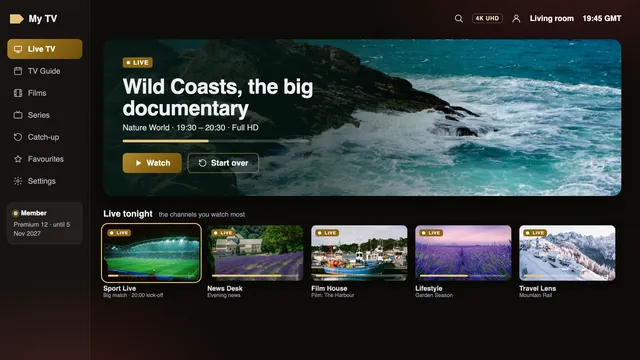
With the Xtream login, a good player loads the 7-day programme guide on its own, in UK time, and lays it out as a grid you can scroll with the remote. If the times are an hour out, its “EPG time offset” setting puts them right.
Catch-up from the guide
Where a line keeps past programmes, typically for up to a week, you should be able to step back in the grid and play the one you missed. A player that lacks this turns a good membership into a live-only one.
4K and HEVC decoding
4K streams are normally encoded in HEVC (H.265). The player has to hand that to the device’s hardware decoder; software decoding on a weak stick stutters. Add a 4K screen on HDMI 2.0 or newer and about 25 Mb/s on the device, and 4K channels and titles play as produced, with HDR or Dolby Atmos when the source offers them and the TV supports them.
Frame rate matching
Sport broadcast live can carry 50 frames per second when its source does. A device that forces everything to 60 Hz adds a faint, regular judder to a moving ball. Apple TV fixes it with “Match Frame Rate”; on Android TV and Google TV, look for a frame-rate or refresh-rate matching option in the player or the display settings, as the Android TV and Google TV guide shows.
The everyday comforts
Favourites, a search box that finds a title by its first few letters, a parental lock on chosen groups, and a quick way to switch between the last two channels. None of this is glamorous, and all of it is what you notice after a month.
Why some “premium IPTV” apps in the stores show no channels
Store pages with “premium” in the app name rank well for the search, and people install them expecting a ready-made line-up. They open the app and find a login form, or a blank home screen. Nothing is broken. The app is a player and it is waiting for details it does not have.
Where such an app offers a paid “Premium” upgrade, that purchase goes to the app’s developer and unlocks features of the player. It adds no channels. IPTV Smarters Pro works this way: it costs nothing to install, and its in-app “Premium” is optional, at a price that depends on the store. Paying for an app’s upgrade and paying for a membership are two separate things, made to two separate companies.
The opposite case deserves more caution: an app that arrives already full of channels, from an unknown developer, with no login asked. Nobody can tell you where that list comes from, how long it will last or who reads the traffic it sends.
Putting the login into the player
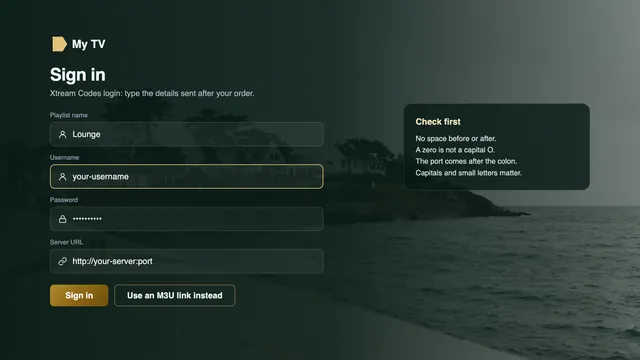
Once the player is installed, the login takes a couple of minutes. In most players the steps run like this:
- Choose the option to add a user or playlist, then pick the Xtream Codes login rather than the M3U link.
- Give the profile any name you like, for example the room it is in.
- Copy in the server URL, then your username and password, character for character from the welcome message. They look like
http://your-server:port,your-usernameandyour-password; keep thehttp://at the front and the port number at the end. - Save, and wait while the player fetches the live groups, the films, the series and the guide.
- Open a UK group, play a channel, then open the guide to confirm the times.
Every device and the order of its menus are covered in the full setup guide. If a step refuses to work, tell the team which device and which player you have, using the contact page; someone answers in English, 24/7.
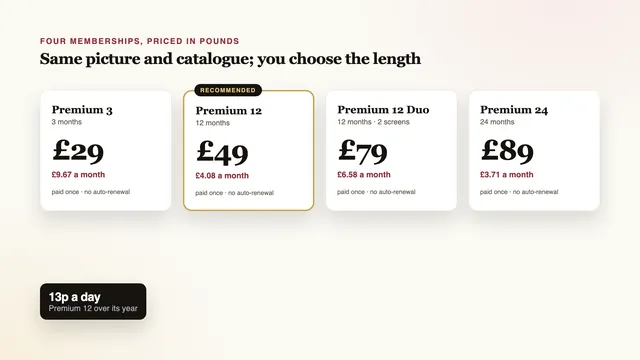
The login can sit in several players around the home, but the plan sets how many screens play at the same moment. Premium 12 Duo allows two together; Premium 12 and the other plans allow one. The four plans are laid out next to each other further up the home page, and the plans page gives each one’s price per month and end date.
Switching players later, and what moves with you
The login is not tied to any app. If a player stops suiting you, install another and type the same details into it; the membership does not notice. What stays behind are the things the old player kept on the device: favourites, hidden groups, the time offset and any parental lock. Note them before you uninstall.
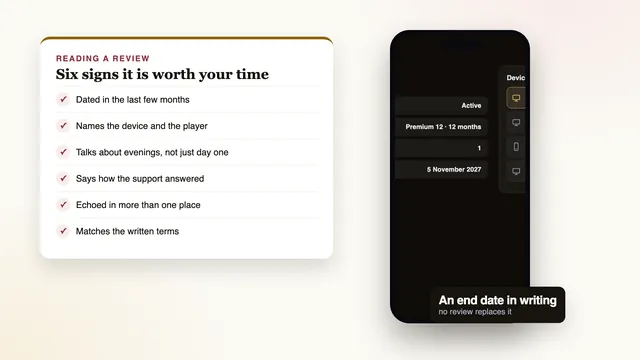
The same is true at the end of a membership. Access stops on the end date, with nothing renewing on its own. If you come back later, the fresh order brings fresh details, and those go into the players already on your devices. No reinstalling is needed.
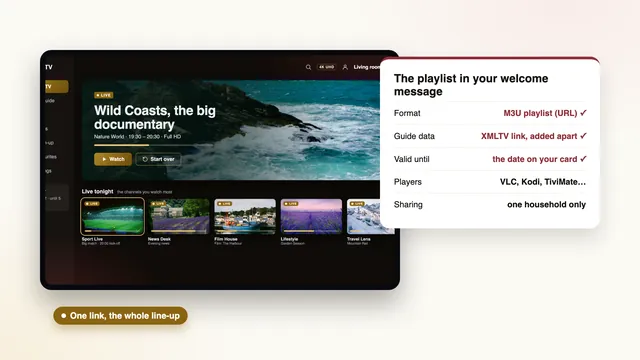
If you would rather use the playlist route in VLC, Kodi or a television app that asks for a list, the guide to the M3U playlist and the guide link explains how. And the premium IPTV membership page lists everything that arrives in the welcome message.
Frequently asked questions
Does the player cost anything?
Installing most players costs nothing. IPTV Smarters Pro sells an optional in-app “Premium” (prices vary by store), TiviMate has paid premium options, and Smart IPTV asks for a single activation on each television. That money goes to the app’s developer, not to us, and it buys player features rather than channels.
Which premium IPTV app works on a Samsung or LG TV?
Look first at IBO Player and Smart IPTV, which pair the list with an identifier shown on the set (its MAC address, or a device key). Smarters Pro is listed for some models in some countries. Failing that, a stick or Android box in an HDMI port is the simple answer.
Is it safe to install a player on a Fire TV stick?
Yes, when you use Downloader from the Amazon Appstore and the download link sent with your login. Avoid codes and files found in forums or under videos. Some recent sticks running Vega OS cannot install it at all, so check the model first.
Can I put the same login in two apps?
Yes, as long as both devices are in your own home. What the plan limits is playback at the same moment: two screens with Premium 12 Duo, a single one with Premium 12 or either of the others.
Why does the app I installed show no channels?
Because it is a player, and players contain no channels. Add the Xtream login or the M3U link from your welcome message and the lists, the guide and the films appear.
Will my favourites move to a new player?
Usually not. Favourites, hidden groups and the guide offset are stored by each player on its own device, so you set them again after switching. The login itself works unchanged in the new app.