Guide
Premium IPTV Playlist: Using the M3U Link From Your Welcome Message
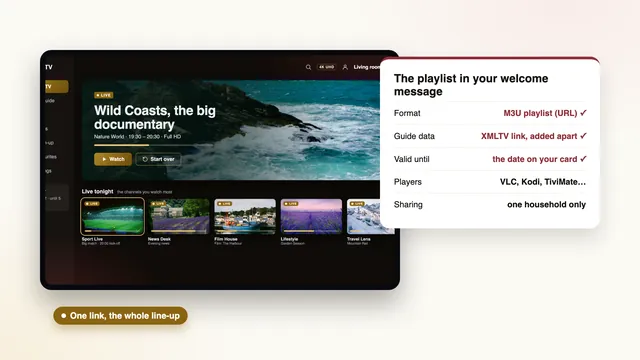
Your premium IPTV playlist is the long M3U link in the welcome message: a second way into the same channels, made for players that cannot take the Xtream login or for anyone who prefers to load a list by hand. This guide explains what the link holds, when to choose it over the Xtream details, how to add the XMLTV guide link, which players read it, how to keep it inside your home and what happens to it on the end date.
What the playlist link actually is
Think of it as the address of a document rather than an app or a file you keep. Each time the player refreshes it, the server writes the list afresh for your login, which is why the link works only while the membership is active.
Opened in a text editor, the start of the list looks something like this, with your-server:port and the dots standing in for your own address, username and password:
#EXTM3U#EXTINF:-1 tvg-id="example.uk" tvg-name="Example FHD" group-title="UK Entertainment",Example FHDhttp://your-server:port/live/…/…/1001.ts
The first line announces the format. Each channel then takes two lines: a description, with the guide reference (tvg-id), the name, the badge and the group it belongs to, then the address the picture streams from. Repeat that pair for every live line in the membership and you have a very long text file, so the very first load is rarely instant; later refreshes are quicker.
The link you receive is shorter than the file it produces. Its shape is http://your-server:port/get.php?username=…&password=…&type=m3u_plus, where each set of dots stands for one of your own details. Copy it in one piece: a single missing character and the player reports an empty or broken list.
M3U link or Xtream login: which to use
Both doors open on the same live channels. They differ in what comes through with them and in which players accept them.
| Xtream login | M3U playlist link | |
|---|---|---|
| What you type | Username, password and server URL in three short fields | One long address |
| Live channels | Yes, sorted into groups | Yes, sorted into groups |
| Films and series | Yes, in their own sections of the player | Depends on the player and the list; often live only |
| Programme guide | Loads by itself, 7 days in UK time | Added by hand with the XMLTV link |
| Catch-up | Yes, wherever the channel keeps past programmes | Missing in many players |
| Changes to the list | Picked up when the player refreshes | Picked up when the playlist is reloaded |
| Typical players | IPTV Smarters Pro, TiviMate and most full players | VLC, Kodi, Smart IPTV, IBO Player, and most others as a fallback |
The rule of thumb is short. Where a player offers the Xtream option, use it: you get the guide, catch-up and the film library without extra steps. Save the playlist for the cases where a list is the only thing accepted: VLC on a laptop, Kodi, and the television apps that take a list through their own website.
Adding the XMLTV guide link to a premium IPTV playlist
Without a guide, a playlist is a column of names. The welcome message includes a second address for that reason: the XMLTV link, which carries seven days of listings for the channels in the list. Its form is http://your-server:port/xmltv.php?username=…&password=…, with the same two details in place of the dots.
- Open the player’s settings and find the guide section. It may be called EPG, TV guide or XMLTV.
- Choose to add a source, and paste the XMLTV link exactly as written.
- If the player asks how often to update the guide, daily is plenty.
- Let it load. The first fetch can take a few minutes because it holds a week of listings for every line.
- Open the grid and compare one programme with the clock. If everything is an hour out, change the “EPG time offset” setting by one hour. British time is GMT through the winter months and BST from late March, when the clocks go forward, until late October, when they go back.
The guide pairs itself with each channel through the tvg-id reference you saw in the playlist. When a single line stays blank, the channel usually publishes no listings. When every line is blank, the XMLTV address has a typo in it or the player has not finished reading it.
Players that load the playlist
Almost every player accepts a list, but each one asks for it in its own place.
VLC
Free on PC, Mac, Android and iOS. Use its option to open a network stream and paste the M3U link. The channels play in a simple list. VLC shows no guide grid, so treat it as a handy check or a way to watch in a study rather than the main lounge player.
Kodi, through an add-on
Out of the box Kodi has no idea what a playlist is. Install the add-on called “PVR IPTV Simple Client”, open its settings, put the M3U link in the field for the playlist address and the XMLTV link in the field for the guide, then restart Kodi if the channels do not appear.
Smart IPTV and IBO Player on the television
These two load the playlist from their own website rather than from the remote. Each TV gets its own single Smart IPTV activation, after which you upload the list on the app’s site against the MAC address the set shows on screen. IBO Player pairs the list with that MAC address, or with a device key, in a similar way. The long link is typed on a phone or computer, which is much kinder than a remote.
TiviMate and IPTV Smarters Pro
Both accept a playlist, but both also take the Xtream login, which brings the guide and catch-up with it. Use the list in them only if you have a particular reason. The guide to choosing a player for each device pairs these apps with the right screens, including Samsung, LG and Fire TV.
When the list will not load, or loads and will not play
Most playlist trouble comes down to a handful of causes, and the player’s message is usually vaguer than the fix.
| Symptom | Usual reason | First remedy |
|---|---|---|
| An error on loading, or an empty list | A character lost while copying, or a space added at the end | Paste the link again from the welcome message, in one piece |
| Channel names appear, nothing plays | The end date has passed, or a one-screen plan is already playing elsewhere in the home | Check the date in the welcome message and stop the other screen |
| Names but no listings | The XMLTV link is missing or mistyped | Add it again in the guide settings and let it finish |
| Listings an hour early or late | The player’s own time zone, or the spring and autumn clock change | Shift the EPG time offset by one hour |
| A long wait the first time | Thousands of lines to read on a modest device | Give it a few minutes on the first run |
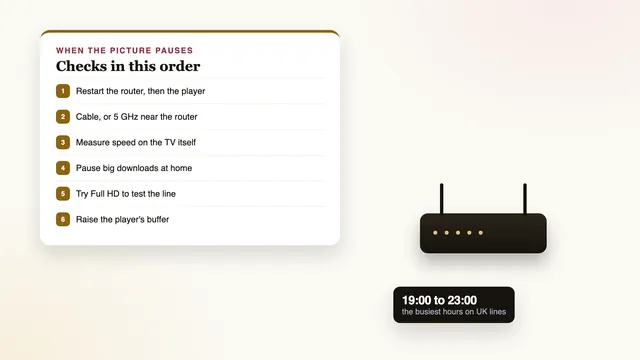
| Pictures pause in the evening | Wi-Fi range, or too little speed reaching the device | Ethernet or 5 GHz Wi-Fi; a steady 25 Mb/s for every 4K screen, around 10 for Full HD |
If none of that settles it, send the team the name of the player, the device and the exact wording of the error. A photo of the screen helps more than a description, and it saves a round of questions.
Keeping the playlist inside your household
The playlist link is a key with your password printed on it. Anyone holding it can open the membership from their own device, and the server cannot tell their screen from yours.
- Use it on the devices in your own home. The membership covers one household.
- Avoid screenshots of the player’s settings in group chats or on social media: the link is often visible in them.
- Do not paste it into websites that offer to “check” or “merge” playlists. You have no idea where it goes next.
- Keep the welcome message in a safe place, so you are not tempted to save the link somewhere public.
- If you think the link has escaped, tell the team straight away and ask what can be done.
What happens to the link at the end date
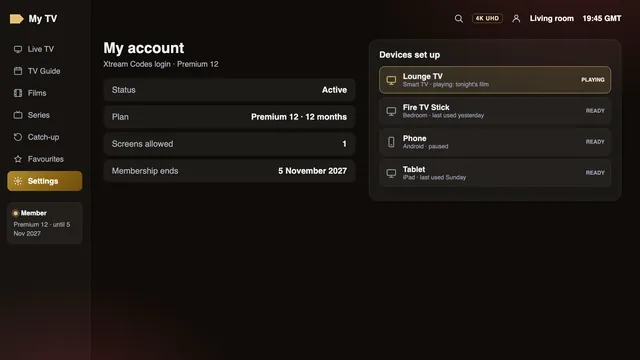
Every membership has an end date, written in the welcome message. Nothing renews by itself and nothing is taken from your card later: on that date the access stops, and the playlist link stops with it.
Players react in different ways. Some show the old list from memory, and every channel refuses to play. Others report an error or an empty playlist when they try to refresh. Either way, nothing is wrong with the device; the link has simply expired.
Ordering again is a new order and brings a new login, so the playlist link and the guide link will be new as well. Delete the old playlist in each player before adding the new one, so you are not left with two lists, one of them dead. Favourites may need rebuilding afterwards.
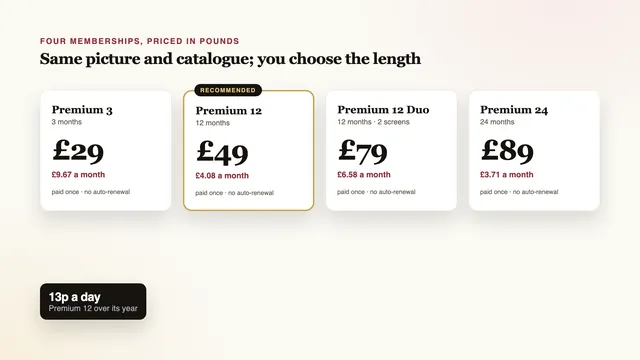
If you want to see how long each choice lasts before ordering, the plans on the home page show the length and price of all four, and the full plans page works out the price per month and the date each would end. Premium 12 runs for 12 months at £49, paid once.
Why free “premium playlists” found online stop working
Search for the phrase and you will find pages, videos and chat groups offering lists for nothing. They tend to fail in the same ways, and the reasons are practical.
- They are shared by thousands. A list posted publicly is usually somebody’s login. Once it spreads, the account behind it is shut, and the list dies within hours or days.
- Nobody looks after them. There is no guide link, no catch-up, no badge you can trust and no person to ask when a channel goes dark.
- The pages around them are the real risk. Sites that hand out lists are often full of pop-ups, fake download buttons and installers that bring unwanted software with them.
- You cannot see who runs the server. Whoever controls it sees the connection from your home and can change what the list contains whenever they like.
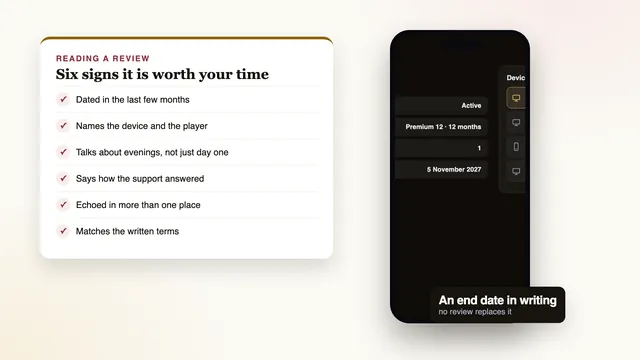
A premium IPTV playlist, in the sense this site uses, is the opposite: a link made for one household, with a guide link beside it, an end date in writing and help in English, 24/7. The guide to judging an IPTV seller covers the other warning signs worth knowing before you pay anyone.
If the list loads but pauses in the evenings, the guide to fixing a picture that pauses goes through the home network first. For anything the player throws at you, reach the team by WhatsApp or email, and the setup guide for each device covers the Xtream route in full. The premium IPTV home page lists everything the welcome message contains.
Frequently asked questions
Which line of the welcome message is my premium IPTV playlist?
The longest one: an address with your username and password inside it. It sits in the same message as the server URL, the two login details, the guide link and the end date, sent by WhatsApp or email once the payment is through.
Should I use the M3U link or the Xtream login?
Use the Xtream login wherever the player offers it, because the guide, catch-up and the film library come with it. Keep the M3U link for VLC, Kodi and television apps that only accept a list.
Why does my playlist show channels but no guide?
A playlist does not carry the programme guide. Add the XMLTV link from the welcome message in the player’s guide settings, let it load, and adjust the EPG time offset if the times are an hour out.
Can I open the playlist on several devices?
Yes, on the devices you use at home. The number that may play at the same moment is set by the plan: one screen with Premium 12, two with Premium 12 Duo.
What happens to the link when the membership ends?
It stops working on the end date written in the welcome message, and nothing renews by itself. Ordering again brings a new login, so you add a new playlist link in each player.
Is a free playlist from a website the same thing?
No. Lists posted online are usually a login shared by thousands, and they stop within hours or days. They come with no guide, no help and pages that often carry unwanted software.