
The welcome message
Open it on your phone. You will copy from it line by line, so keep it in front of you rather than working from memory.
Setup
This premium IPTV setup guide starts where the order ends, with the welcome message on your phone, and finishes with a channel playing at the best quality your screen can show. Allow five to fifteen minutes per device: install a player, type the login, check the guide against the clock, then go through the few picture settings that decide whether a 4K source looks like 4K.
Before you start
None of these takes long, and each removes a reason for the first evening to go wrong.
Open it on your phone. You will copy from it line by line, so keep it in front of you rather than working from memory.
The brand and model, found in the settings menu or on the sticker at the back, decide which player to install and where its settings live.
Long addresses are slow on a remote. A USB keyboard, or the TV maker’s remote app on your phone, turns the login into a two-minute job.
Measure on the TV or stick itself, in the evening. HD wants a steady 5 Mb/s or so, Full HD about 10, and each 4K screen about 25.
An Ethernet cable from the router gives the steadiest link. Failing that, use the router’s 5 GHz band, ideally from the same room.
Three of them: a 4K screen, an HDMI input of version 2.0 or later, and a player able to decode HEVC (H.265) with the device’s hardware. Lose one and 4K titles drop to a lower resolution.
Step by step
The same nine steps work on almost every device. Only steps two and three change from one family of screens to the next, and the sections below cover them.
Roughly 2 minutes after you pay, it reaches WhatsApp or your inbox. Six lines: three for the login, two links and one date.
Fire TV, Samsung, LG, Android TV, Apple TV, phone or computer: each has players that suit it, listed further down this page.
Use the App Store, Google Play or the TV’s own store. On a Fire TV stick, Downloader goes in first; the player’s link is part of your welcome message.
Most players ask how you want to sign in. Where you have the choice, pick Xtream Codes (sometimes « Xtream Codes API ») rather than a playlist.
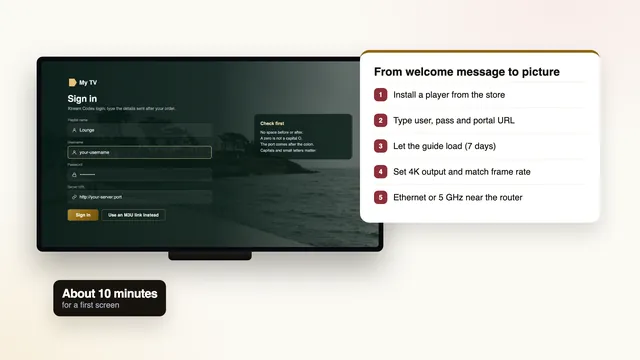
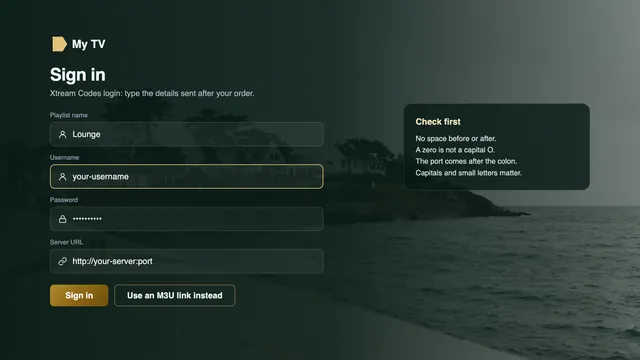
Copy the server address exactly, http:// and port included, then the username and password with their capitals. Name the profile anything you like.
The player fetches 40,000+ channel entries, the film and series library and seven days of listings. Leave the remote alone until the list appears.
Open the programme guide and compare one start time with your phone. A grid that is an hour out is corrected with the EPG time offset setting.
Output on Auto or 2160p, frame-rate and dynamic-range matching on, hardware decoding in the player, and a cable or 5 GHz Wi-Fi.
Open something marked 4K and a sports channel, then read the player’s info panel: the resolution, the frame rate, and no pauses after a minute or two.
Steps one to three happen once per device, four to seven once per player, and the last two whenever you change TV. Would you rather do it with someone? Message the team with the device’s name and they will go through each screen with you. If you have not ordered yet, the premium IPTV home page shows what a membership includes.
Your login
Six lines arrive. The premium IPTV setup uses three of them on most devices, and the rest are there when a player asks.
Each line has one job. The first three form the Xtream Codes login, which nearly every current player accepts. The two long links serve players that prefer a playlist. The last line tells you how long all of it lasts.
Store the message a second time, away from WhatsApp or your inbox: a note on the phone, a password manager. Chats get cleared and phones get swapped, and on a new TV next spring these six lines are the only thing you will be asked for.
Treat it like a house key. One membership belongs to one household, and a login that shows up outside the home, or in a public post, can be suspended.
What lands on your phone about 2 minutes after paying
Left blank here. The real values exist only in your own message.
Your name on the server. Capitals count, so copy it exactly as written.
Paired with the username, and hidden as you type in most players. Paste it if the device allows.
Shaped like http://your-server:port. Keep the colon and the port number on the end; without them the server turns the login away.
A single long link containing the whole channel list, for VLC, Kodi, Smart IPTV and other players with no Xtream option.
Seven days of listings for the playlist route. Players signed in with Xtream fetch them on their own.
The last day of the membership. Nothing renews; ordering again brings fresh details for the players you already use.
Your screens
Step two of the premium IPTV setup depends on the screen in front of you. Start from the card that matches it.
Smarters Pro cannot be found in Amazon’s Appstore, so the route runs through Downloader, an Appstore app by AFTVnews. Install it, open My Fire TV in Settings, then Developer options, and give Downloader the Install unknown apps permission. Developer options not listed? Select About on that same screen and press OK on the stick’s name seven times in a row. The player’s link is in your welcome message. Before buying a stick, note that some newer Amazon models use Vega OS and will only take apps from the Appstore. The premium IPTV Firestick guide has every screen.
Depending on model and country, Smarters Pro may or may not appear in the TV’s store. Two other players suit most sets: Smart IPTV, activated once per TV, which takes the playlist through its website using the set’s MAC address, and IBO Player, which binds the playlist to the TV’s MAC address or its device key. Failing both, add a streaming stick on a free HDMI input.
Google Play has the players: XP IPTV, IPTV Smarters Pro, and TiviMate, which is free to install with paid extras. Avoid APK files passed around on forums, a known way for malware onto a TV. Sets and boxes are covered in the guide to premium IPTV on Android TV.
Apple devices install from the App Store alone, where VLC and IPTV Smarters Pro are listed at the time of writing. Apple TV owners also have two Match Content switches to set, explained in the picture section below and in the iPhone and Apple TV guide.
On a computer, VLC is the quickest route: open the M3U link as a network stream. Kodi reads it too, once the PVR IPTV Simple Client add-on is enabled. Apple-silicon Macs can also install Smarters Pro from the App Store.
Smarters Pro and VLC are both in Google Play. A phone also makes a handy check: if it plays and the TV does not, the login is fine and the TV’s settings are where to look.
On its store page, IPTV Smarters Pro appears as « Smarters Pro » from Tech Smarters Private Limited. Look for that developer name, because apps with similar names exist. The download costs nothing, an optional Premium upgrade inside the app is priced by each store, and no channels come with it.
We publish no app and sell no box or stick: the login is the whole product. The guide to which premium IPTV app to use compares the players that accept it, device by device.
Signing in
Given the choice, use Xtream Codes. The player then builds live TV, films, series and the guide as separate menus, and fetches the listings with no extra address to paste.
Most refused logins come down to typing. Watch for a missing http://, a port number left off, a space after the password, or a capital O where a zero belongs. A USB keyboard or the TV maker’s phone app lets you paste instead.
Expect the very first load to run for a minute or more while the channel list and a week of listings download, longer on an entry-level stick. Pressing buttons meanwhile only slows it. For players that take a playlist only, the premium IPTV playlist guide shows where the M3U link and the guide link go.
| Xtream Codes | M3U playlist | |
|---|---|---|
| Copied from the message | Server URL, username, password | One long link, plus the guide link |
| Where it goes | « Xtream Codes », « Xtream Codes API » or a login screen | « Add playlist », « M3U URL » or « Remote playlist » |
| Programme guide | Loads by itself | Paste the XMLTV link into the EPG settings |
| Films and series | In their own menus | Mixed into the list, or missing, depending on the player |
| Suits | TiviMate, IPTV Smarters Pro, IBO Player, XP IPTV | VLC, Kodi, Smart IPTV |
Guide and catch-up
| What you see | Likely cause | What to change |
|---|---|---|
| Every programme exactly one hour out | The player or device is still on the other half of the GMT/BST switch | Move the EPG time offset by one hour; if the gap doubles, go the other way |
| The grid is several hours out | The device’s time zone is set to another country | Set the device to UK (London) time, then refresh the guide |
| No listings at all, M3U route | The XMLTV link was never added | Paste the guide link from the welcome message into the EPG settings |
| Listings stop after a day or two | The player has fetched only part of the week | Refresh or update the EPG in the player’s settings |
With the Xtream login, the guide fills itself: seven days of listings in UK time. Players loaded with the M3U link need the XMLTV link pasted into their EPG or guide settings; give it a minute to download.
UK time means GMT in winter and BST, an hour ahead, in summer. BST starts on the final Sunday in March and ends on the final Sunday in October. On 5 November 2026, when this page was checked, the UK was on GMT.
A whole grid shifted by exactly one hour is a time-zone setting, not a fault in the listings. Fix the device’s own time zone first, in its date and time settings, and only then touch the player’s « EPG time offset », which some players call « EPG shift ».
Catch-up lives in the same guide. Channels with an archive carry a small marker; choose a programme from earlier in the week, usually up to seven days back, and it plays from the beginning.
Picture
This is the part of a premium IPTV setup that most people skip, and the part that decides whether a 4K source looks like 4K on your screen.
In the device’s display settings, set the resolution to Auto or 2160p. A stick fixed at 1080p shows every 4K title at Full HD, however good the source.
HDR should switch on for HDR programmes and off for the rest. On Apple TV the switch is Match Dynamic Range, found in Settings › Video and Audio › Match Content; on a 4K Fire TV, choose Adaptive for Dynamic Range in the display menu.
Where the source allows, live sport arrives at 50 frames per second, and a device stuck at 60 Hz adds a faint judder to every pan. Apple TV calls the fix Match Frame Rate, Fire TV calls it Match Original Frame Rate, and some players offer a frame-rate option in their playback settings.
4K streams are usually coded in HEVC (H.265). In the player’s settings choose the hardware decoder, often labelled HW. A software decoder on a small stick drops frames or stalls.
Plan on 25 Mb/s per 4K screen, steady through the evening. A cable to the router is steadiest, 5 GHz Wi-Fi at short range comes next, and powerline or mesh help when the router is far away.
Plug the stick or box into an HDMI 2.0 or newer socket. Some sets need the full 4K signal switched on for that input: Input Signal Plus on Samsung, HDMI Ultra HD Deep Colour on LG.
None of this improves a source that is not 4K. A channel produced in HD stays HD, and a good setup simply shows it cleanly. What these settings prevent is the opposite: a 4K source arriving at a lower resolution, or 50 fps sport stuttering, because one link in the chain was left on its factory default.
Picture modes are a matter of taste, but two habits help. For films, a cinema or filmmaker mode keeps colours close to how they were graded. For sport, try the TV’s motion setting on low before switching it off completely.
The guide to premium IPTV in 4K and HDR goes further: what each link in the chain contributes, and how to confirm the resolution that actually reaches the screen.
Night one
Give the first evening ten minutes of attention and the rest of the year mostly looks after itself. Begin with the guide: pick a programme and compare its start time with your phone.
Next, open a title marked 4K and press the info or OK button while it plays. Most players show the resolution and the frame rate; 3840 × 2160 means every link in the chain is doing its job. A live sports channel should report 50 frames per second where the source has it.
Then take a speed reading on the streaming device itself during the evening peak, roughly 19:00 to 23:00 and busiest at weekends or on big match nights. A result that sinks well below 25 Mb/s at those hours explains 4K pauses before they happen.
Finally, save a short list of favourites and play something from catch-up. A live picture runs a few seconds behind the broadcast, sometimes as much as thirty; that is normal for streaming and not a fault.
Troubleshooting
Most first-evening problems come from one of these six, and each has a fix you can try before writing to us.
| What happens | Likely cause | What to try |
|---|---|---|
| The login is refused | A slip in the server URL, username or password | Check http://, the port, the capitals and any trailing space; paste rather than type if you can |
| Channels list but nothing plays | The player’s decoder, or an out-of-date app | Update the player, switch the decoder between hardware and software, restart the device |
| The guide is an hour out | Time zone or EPG offset | Correct the device’s time zone first, then the EPG time offset |
| 4K titles look soft | Output fixed at 1080p, a Full HD-only stick or an older HDMI socket | Set the output to Auto or 2160p, use an HDMI 2.0 socket, check what the device supports |
| The picture pauses in the evening | Wi-Fi range or a crowded home network | Move to a cable or to 5 GHz near the router, pause large downloads, measure again |
| The welcome message never came | A spam folder, another chat, or a payment not yet approved | Look in spam and promotions, check the banking app, then write to the team |
If a fix does not hold, message the team with the device, the player, the step you reached and a photo of the screen; they work through it with you on your own device. Pauses that come back night after night are covered in the guide to premium IPTV buffering and its fixes. And if, even with that help, not one screen at home will show a picture, the 7-day refund rule is there for exactly that case.
FAQ
On a phone or an Android TV, five minutes is typical. A Fire TV stick takes longer the first time, because Downloader and the developer setting come first. The picture settings add a few minutes per TV, once.
Yes: each screen gets its own player and the same login. With a one-screen plan only one plays at a time; Premium 12 Duo lets two play together.
Yes. Over WhatsApp, someone follows along as you work the remote, telling you which app to fetch, which box each line belongs in and which setting to flip. A photo of the screen makes it quicker.
Usually one link is missing: a source not made in 4K, output fixed at 1080p, an older HDMI socket, or a player decoding HEVC in software. The picture settings on this page list where to look.
The players stay installed. A new order brings a new welcome message, and you replace the server URL, username and password in each player with the new ones.
Not if your TV or a stick already runs a compatible player. A box adds nothing to the channels. If you do buy one, look for Android TV or Google TV certification, 4K output at 60 Hz, hardware HEVC decoding, at least 2 GB of memory, an Ethernet port and dual-band Wi-Fi with 5 GHz.
Choose a plan, pay once by card or PayPal, then follow this premium IPTV setup on each screen. If nothing plays anywhere at home even with the team’s help, you have 7 days to ask for your money back.