Guide
Premium IPTV buffering: why a picture pauses and what to check at home
Premium IPTV buffering is the moment a stream stops to refill: a turning wheel, a frozen frame, then the picture carries on a few seconds later. In most homes the cause sits somewhere between the router and the screen, so this guide starts there, moves on to the evening rush and the speed each picture needs, and ends with a four-step checklist and the details worth sending the team if the pauses carry on.
What buffering is, and what it is not
Every player keeps a small store of picture in reserve: a few seconds that have already arrived but have not yet been shown. While data flows in faster than the screen spends it, that store stays topped up and you never notice it. When the flow slows for long enough, the store runs dry, the player stops, waits until it holds a few seconds again and then carries on. That stop is buffering.
So the real question is never just how fast your broadband is. It is whether the flow reaching that one screen holds steady through the whole evening.
Three faults that look alike
- A pause with a turning wheel, after which the picture resumes where it stopped. That is buffering, and the rest of this guide is about it.
- A picture that runs late. The family in the next flat cheers a goal before you see it. Live pictures normally lag the broadcast by a handful of seconds, occasionally by as much as thirty. That is a delay rather than a fault, and no setting removes it entirely.
- A channel that never opens, or an error message where the picture should be. That points to the login, the playlist or the channel itself. Restart the player once; if the same channel still refuses, message the team rather than spending the evening on the router.
Premium IPTV buffering starts at home: five causes to rule out
Most cases of premium IPTV buffering begin on the home side of the connection. That is the useful place to start, because every cause in this section is yours to change tonight, without waiting for anyone.
1. The Wi-Fi band and the distance to the router
Most routers broadcast two networks. The 2.4 GHz band carries further and slips through walls more easily, but it is slower and crowded: every neighbour’s router, cordless phones, baby monitors and the microwave share it. The 5 GHz band is far quicker at short range and fades fast through brick, floors and kitchen units.
A TV in the same room as the router, on 5 GHz, seldom struggles. A stick behind a television two rooms and a floor away, on 2.4 GHz, often does. An Ethernet cable beats both. Where a cable cannot reach, a powerline adapter or a mesh point placed halfway brings a strong signal much closer to the screen.
2. The speed measured on the device itself
The number on your broadband bill is the speed delivered to the router. What counts is the speed that reaches the TV or stick, and it can be a fraction of the first. A phone held beside the router tells you very little about a stick plugged in behind a wall-mounted screen.
Open a speed-check app or website on the device that pauses, ideally while the pauses are happening, and write down the download figure. Run it twice, a few minutes apart. A figure that stays put matters more than a high one that jumps around.
3. Other devices downloading at the same time
A screen playing 4K needs a steady share of the line, and it competes with everything else in the house. A games console fetching an update, a laptop syncing photos to the cloud, a phone backing up, another TV playing a film: each takes its slice, and big downloads tend to grab as much as they are allowed.
If the pauses arrive at the same time each evening, look at what else wakes up then; many router apps show how much each device is pulling. Holding back one large download for the length of a match is sometimes the whole fix.
4. An old stick or box
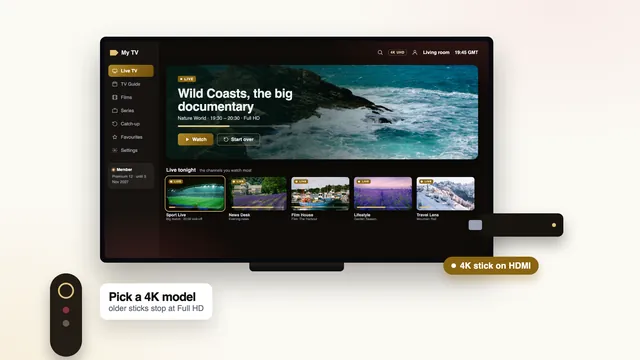
A player device is a small computer, and an ageing one shows it: slow menus, stutters, and pauses even on a sound line. Older Lite and basic Fire TV sticks top out at Full HD. Cheaper boxes may only join 2.4 GHz Wi-Fi, and boxes left on an Android release that stopped receiving updates years ago often struggle with 4K streams in HEVC (H.265).
If you are choosing a device, look for 4K output at 60 Hz, hardware decoding of HEVC, at least 2 GB of memory, an Ethernet port or adapter and 5 GHz Wi-Fi. Our pages on choosing a Fire TV model for a steady picture and on Android TV and Google TV sets and boxes go through the models and their settings.
5. The player’s buffer setting
Some players let you decide how much picture to hold in reserve. The option goes by different names, such as buffer size or network caching, and usually sits in the playback or advanced settings. A larger reserve rides out short dips in the line; the cost is a slightly longer wait when you change channel, and a picture that sits a few more seconds behind live.
Leave it at the default to begin with, and raise it by one step only if brief pauses keep returning on a line that measures well. Where the app offers a choice of decoder, keep hardware decoding switched on.
The evening peak, from 19:00 to 23:00
Across the UK, home internet traffic climbs from about seven in the evening and stays high until around eleven, with weekends and big match nights the heaviest of all. Three things happen together in those hours. Everyone in your home is online. Everyone in your street is too, on the same local network your line feeds into. And far more people are watching live at the very same moment.
That is how a picture that is flawless at lunchtime can stall at a quarter to nine on a Saturday. On our side, the busy hours are spread across several servers. On your side, measure during the hours the pauses happen, not on a quiet morning.
On a big match night
- Pause console updates, cloud backups and large downloads until the final whistle.
- Put the TV showing the match on the cable or the 5 GHz band, and leave the phones on 2.4 GHz.
- If your evening speed sat close to the 4K figure, choose a Full HD version of the channel where one is listed. A steady Full HD picture is easier to watch than a 4K one that halts every few minutes.
How much speed each picture needs, per screen
These are the approximate steady figures to look for, measured on the device itself during the evening. They are per screen, so two TVs playing at once need double.
| Picture on screen | One screen | Two screens together | Also needed |
|---|---|---|---|
| HD | 5 Mb/s, held steady | 10 Mb/s combined | Any HD set and a current player app |
| Full HD | 10 Mb/s, held steady | 20 Mb/s combined | A 1080p set; a cable or 5 GHz link helps after dark |
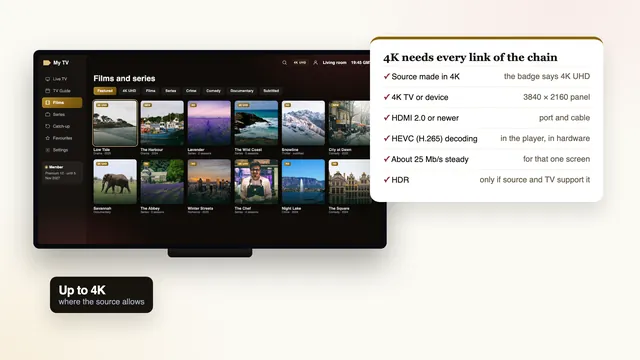
| 4K UHD, where the source was made in 4K | 25 Mb/s, held steady | 50 Mb/s combined | A 4K TV or device on HDMI 2.0 or newer, plus a player using the device’s hardware HEVC (H.265) decoder |
Notice the word steady: a line that bursts to 60 Mb/s and sinks to 15 for a few seconds interrupts 4K at every dip, yet carries Full HD comfortably. The figures also cover the stream alone, so add whatever else the house is doing.
With Premium 12 Duo, two screens play at once, and two 4K pictures need about 50 Mb/s held through the evening, plus the phones and laptops. Not every channel or film is in 4K, since it depends on how each was produced; our guide to what 4K and HDR need from the source, the TV and the cable shows how to tell what you are really watching.
The four-step checklist, in this order
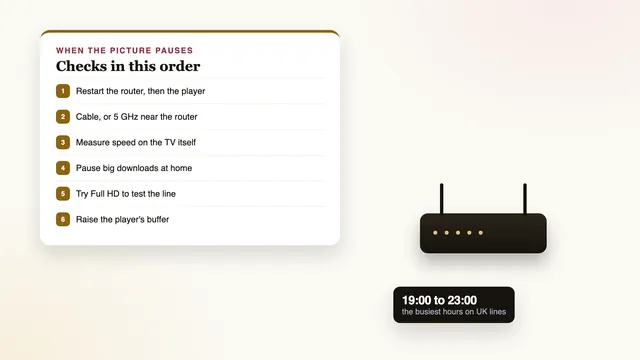
Work through the steps in order and watch the same channel for about ten minutes after each one. Changing four things at once tells you nothing about which of them mattered.
- Restart the router, then the player. Switch the router off at the wall for thirty seconds and wait for its lights to settle. Then unplug the stick or box, or fully restart the TV rather than sending it to standby. A restart clears the device’s memory, and many routers pick a quieter Wi-Fi channel as they start up.
- Use a cable, or 5 GHz near the router. Plug in an Ethernet cable if the device has a port or takes an adapter. If it cannot, join the 5 GHz network (often the one whose name ends in « 5G » or « 5GHz »), bring the router and the screen closer, or add a mesh point or powerline adapter between them.
- Lower the picture to Full HD to check. Pick the Full HD or HD version of the channel where one is listed, or a film that is not in 4K. If the pauses stop, the line cannot hold the 4K figure at that screen in the evening, and steps 1 and 2 or a quieter house are the answer.
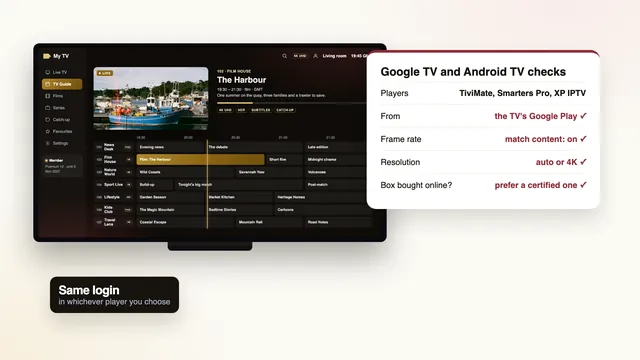
- Change player. Install a second compatible player and log in with the same details; the setup page shows where each player comes from on your device. If the second one plays smoothly where the first paused, the first app or one of its settings was at fault: update it, clear its cache, or keep the newcomer. The guide to player apps (we publish none) compares the usual choices.
Reading the result
| The pauses stop after… | What it tells you | What to keep doing |
|---|---|---|
| Step 1, the restarts | The stick’s or router’s memory had filled, or the Wi-Fi channel was crowded | Restart both now and then, say once a week |
| Step 2, cable or 5 GHz | The wireless link to that screen was the weak point | Keep the cable, or move the router or add a mesh point for good |
| Step 3, Full HD | The line, measured at that screen, cannot hold 4K at peak times | Watch in Full HD in the evening and in 4K when the house is quiet |
| Step 4, another player | The first app, its version or its settings | Keep the app that plays smoothly, or update and reset the first |
| None of them | Something the team should look at | Send the details listed further down |
Settings on the screen that are worth a look
A few settings outside the player change how smooth the picture looks, and one or two produce faults that people mistake for buffering.
- Frame-rate matching. On Apple TV, the switches sit in Settings › Video and Audio › Match Content: turn on « Match Dynamic Range » as well as « Match Frame Rate ». Many Android TV and Google TV devices have a similar option in their display settings. Left off, a live match at 50 frames per second may judder in a regular beat that looks like tiny pauses.
- Free storage and updates. A stick with almost no space left slows right down, and an out-of-date player stutters in ways no speed check explains. Remove apps you no longer use, clear the player’s cache and keep the app current.
- Heat. A stick squeezed behind a wall-mounted TV can run hot and slow itself down; a short HDMI extender that moves it away from the set helps.
What to send the team if it still pauses
If the picture still stops after the four steps, write to us. A message with the right details usually reaches the cause in one exchange rather than five. Put these in it:
- The time and the day, for example « Thursday, between 20:40 and 21:00 », which shows whether the pauses follow the evening peak.
- The channel category, not the channel’s name, with the quality badge: « UK sport, 4K » or « UK films, Full HD ». With the time, that is enough to find the stream.
- The device and the player app, such as « Fire TV Stick 4K Max with TiviMate ». Some fixes depend on the model and the app.
- Your speed result on that device, and how it was connected: « 18 Mb/s on 5 GHz, measured at 20:45 ».
- What you have already tried, for instance « restarted both, Full HD pauses too », so nobody asks you to repeat the checklist.
The team answers 24/7 in English, on WhatsApp or by email. You can open a WhatsApp chat with the team straight away, or find every way to reach us on the contact page.
What a premium membership can and cannot promise about pauses
Nobody can honestly promise that a live stream will never stop, and we do not. What « premium » means here is narrower and checkable: one channel list, one library and one picture standard across all four plans, the evening load spread over several servers, and a person who answers when something goes wrong, at any hour.
A longer plan therefore does not pause less: Premium 24 costs less per month than Premium 3, yet the picture is the same. Choose the length on price and on how long you want to watch, from the four plans and their prices or the plans page with each end date and monthly price.
Before ordering, measure the speed on the screens you plan to use. The 7-day refund applies in two cases only: no login message ever reached you, or no screen in the home showed a picture after the team had helped. 4K stalling on a line that was too slow, once the speeds above had been explained, is not one of them, which is one more reason to check first. The exact terms sit on the refund policy.
Claims about premium IPTV buffering are easy to make and hard to verify; our guide on how to judge reviews of an IPTV seller shows which comments about pauses deserve belief, and the home page sets out what the premium IPTV membership includes beyond the picture.
Frequently asked questions
Does a longer plan buffer less?
No. Every plan opens the same channel list and library at the same picture quality, so Premium 24 is longer, not smoother. Pick the length on price: it comes to £3.71 a month against £9.67 for Premium 3.
Why does the picture only pause in the evening?
From around 19:00 until 23:00 your home, your street and live viewers everywhere are busier at once, with weekends and big match nights the heaviest. Measure the speed on the device during those hours, because the morning figure flatters the line. On our side, that load is spread across several servers.
Is my broadband fast enough for 4K?
Look for around 25 Mb/s that holds steady when measured on the TV or stick, for each screen showing 4K, plus whatever else the house is using. The figure on your bill is the speed to the router, not to the screen. Two 4K screens at once need about 50 Mb/s.
Do I need a new stick to stop premium IPTV buffering?
Only if pauses continue on a cable, at Full HD and with a second player, or if it is an older Lite or basic model that tops out at Full HD. A replacement should decode HEVC in hardware and have at least 2 GB of memory, an Ethernet option and 5 GHz Wi-Fi.
Why is the match behind my neighbour’s?
A live picture normally reaches you a few seconds after the broadcast, sometimes up to half a minute later. That is a delay, not buffering, and the picture itself plays smoothly. A larger player buffer can add a few seconds to it.
Can I get a refund if the picture keeps pausing?
You have 7 days from payment if no login message ever came, or if not one screen showed a picture after the team had helped. It does not cover 4K stalling on a line that was too slow once the speeds were explained. Write to the team first: a cable and Full HD settle many cases.