Guide
Premium IPTV Channels: the Layout, the Picture Badges and the Guide
Premium IPTV channels are best judged by what you can check on your own television, not by the size of a number on a web page. Here the list holds 40,000+ live channels in country blocks, each divided by type of programme, with the British block on top, and every line carries a badge for the picture level of its source. This guide covers that layout, what the badge does and does not promise, the 7-day guide and catch-up, a favourites list you will actually use and the checks worth making on your first evening.
What you see when the list first opens
A list of that size works like a directory, not like a menu. Nobody scrolls it from top to bottom and nobody is meant to. What matters is how fast you reach the dozen or so channels your home watches every week, how honestly each one is labelled, and whether the guide beside it shows the right programme at the right hour.
That is the angle of this page. A channel total is easy to print in large type. The layout, the labels and the guide are things you can inspect yourself within an hour of the welcome message arriving, and they say far more about what the word “premium” ought to mean than any number does.
The live list is only half of the catalogue, too. The 120,000 films and series sit in their own section of the player, largely English-language and the remainder subtitled, and they follow the same badge logic described below.
Country first, then category: how the groups are sorted
Most players that read the login draw the list in the same three columns: the groups on the left, the channels of the chosen group in the middle and a preview or the guide on the right. The groups obey one rule. They are sorted by country, and inside each country by the kind of programme they carry.
The British groups come first
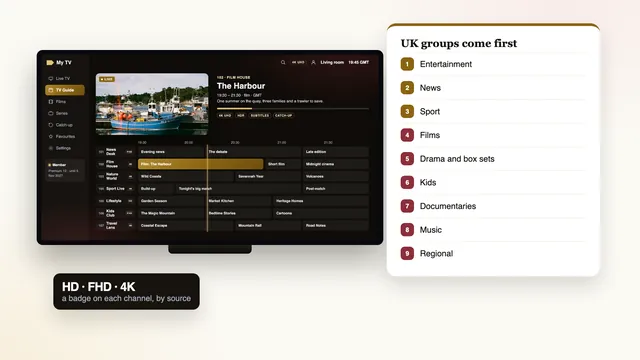
Open the live section and the first groups you meet are the UK ones, split into categories:
- Entertainment: the general channels most households start the evening on;
- News: rolling news and current affairs through the day;
- Sport: football, cricket, rugby, golf, tennis, snooker, darts, boxing, motor racing and more, with live events reaching 50 frames per second if their source is made that way;
- Films and drama and box sets: scheduled film channels and the channels built around series;
- Kids, documentaries and music, each in a group of its own;
- Regional: channels with programmes and local news for the nations and regions.
Because those groups lead the list, a home that mostly watches British television rarely has to go past the first screen of groups. Everything else waits further down until somebody asks for it.
Other countries below, each in its own block
After the UK come the groups for other countries, divided by category in exactly the same way. They suit homes where a second language is spoken, the football fan who follows a team abroad, and anyone who likes the news from the country they grew up in. If nobody in your home opens them, they cost nothing except a longer column.
Hiding the groups you never open
Many players let you hide whole groups, either from the settings or with a long press on the group’s name. The label varies from one app to the next, but the result is a shorter column that holds only what your household uses. Hidden groups are not removed from the membership: you can bring them back whenever you like, and in most players the change applies to that one device only.
The picture badge on premium IPTV channels
Beside most channel names you will see a short tag: HD, FHD or 4K. It names the resolution the source is sent in. Read for what it is, it is the most useful label in the whole list.
| Badge | Pixels in the source | Screen and equipment | Broadband held steady on that device |
|---|---|---|---|
| HD | Usually 1280 × 720 | Any HD set, phone or tablet | Roughly 5 Mb/s |
| FHD | 1920 × 1080 (Full HD) | A 1080p or 4K screen | Roughly 10 Mb/s |
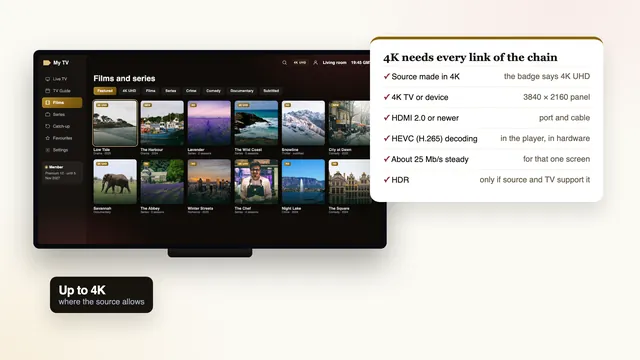
| 4K | 3840 × 2160 (UHD), only where the programme was produced in 4K | A 4K set or device on HDMI 2.0 or later, and a player using the device’s hardware HEVC (H.265) decoder | Roughly 25 Mb/s for each 4K screen |
What the badge tells you
It gives the most detail the source can deliver, and that sets a ceiling. An FHD line will never look sharper than Full HD, however good the set, and an HD line on a 65-inch screen will look softer than the same programme on a phone. When a channel is carried at more than one level, each version gets its own line and its own badge, so you can choose the one that suits the screen and the connection in front of you.
What the badge leaves out
- HDR. High dynamic range appears only when the source offers it, and only when the player and the TV both support it. A 4K badge on its own does not mean HDR.
- Sound. Dolby Atmos follows the same rule: it plays when the source carries it and your equipment can decode it.
- Smoothness. A live match can reach 50 frames per second if its source offers that, and the badge is silent on frame rate.
- Your own connection. A 4K line on a stick at the far end of the house, on crowded 2.4 GHz Wi-Fi, will pause long before the source is to blame.
The picture you get depends on every link in the chain: the source, the servers, your broadband, the device, the HDMI cable and the screen. The walk-through of 4K and HDR at home follows that chain link by link, with the settings to change on each kind of television.
Seven days of listings on British clocks
Sign in with the Xtream details and the programme guide fills itself: what is showing now, what follows and a week of listings ahead. The times follow the UK clock, so GMT in winter and BST between the final Sunday in March and the final Sunday in October, which keeps the grid in step with the clock on your wall.
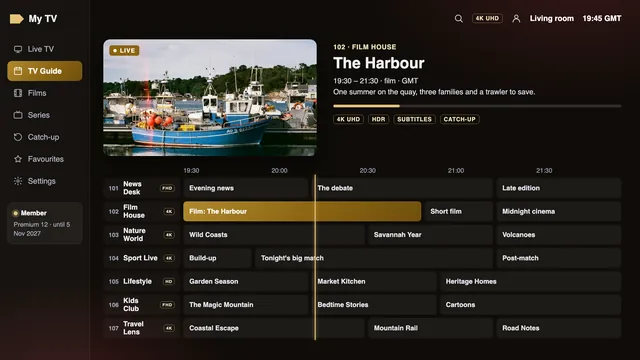
If every programme looks exactly one hour early or late, the player is applying its own time zone or has not caught up with the change of season. The cure is the player’s “EPG time offset” setting: move it by one hour and the grid lines up.
A handful of lines will show no listings at all. That usually means the channel publishes no guide data, not that it is off air, so open it and look. If whole groups are blank, the guide simply has not finished loading: on a first login give it a few minutes, or refresh it from the player’s settings.
Going back in time with catch-up
Catch-up plays a programme that has already gone out, picked from the grid itself. It is not universal. The lines that carry it typically reach as far as seven days into the past, a few keep fewer days and some keep none. Players flag the ones that have it, often with a small clock or rewind symbol beside the name, and some add a catch-up section to the home screen.
- Pick a channel whose name carries the catch-up symbol and bring up its listings.
- Scroll back into the earlier days until you reach the programme you missed.
- Select it and choose to play. In most players it starts from the beginning, and pause and rewind work as on a recording.
Catch-up comes through the Xtream login. If you loaded the M3U link instead, some players cannot offer it at all, which is one reason the guide to the M3U playlist link suggests keeping the playlist for players that cannot take the Xtream details.
A favourites list worth keeping short
Among 40,000+ lines, the favourites list is the place where the membership starts to feel like yours. Keep it brief. Fifteen to twenty-five channels the household really watches are quicker to use than two hundred it might watch one day.
- Think through a normal week and write down the channels each person in the home actually opens.
- Find each one in its group and choose the option to add it to favourites. In most players that is a long press on OK or the options button on the remote.
- Where a channel appears at several levels, add the version whose badge suits that screen: 4K for the lounge set on Ethernet, FHD for the smaller TV in another room.
- Put the five you open most at the top of the list.
- If the player allows it, make favourites the screen it opens on.
Two details save irritation later. Favourites are kept by the player on each device, so the bedroom stick and the lounge set each need their own list. And when a membership ends and a new login is typed in after a fresh order, some players clear the list, so a photo of your favourites screen saves ten minutes of searching.
Why a channel count says little about quality
Offers online quote totals in the tens of thousands. The lines exist, so the number is not false, but it measures breadth rather than quality. Three things swell any large total: groups for dozens of countries, the same channel listed at more than one picture level, and specialist lines that most homes will never open.
Quality shows up in questions no total can answer:
- Is each line labelled with its true picture level, and does a 4K line look like 4K on a 4K set?
- Does the guide load by itself, in UK time, for seven days ahead?
- Is there catch-up, and on which channels?
- Does the picture hold up in the busy evening window, roughly 19:00 to 23:00, which is fullest on Saturdays, Sundays and the nights of a big match? Here, several servers share the load at those hours.
- Will a person answer in English, at any hour, when something on this list goes wrong?
- Is the end date written down, with nothing that renews on its own?
Those are the terms this site uses for premium IPTV channels, and they do not change from plan to plan: Premium 12 carries exactly the same list as Premium 3 and Premium 24, and Premium 12 Duo simply lets two screens play at once. If you are weighing one seller against another, the guide to reading reviews of an IPTV seller and the breakdown of what a membership costs per month take the comparison further.
What to check on your first evening
Roughly 2 minutes after your payment clears, the welcome message turns up on WhatsApp or in your inbox. Treat the first evening as a short inspection rather than a film night: half an hour with this table tells you more than a week of casual viewing.
| Check | How to do it | If it is not right |
|---|---|---|
| The login | Type the username, password and server URL exactly as written, then let the lists load | Copy and paste from the message, look for a stray space, or ask the team to talk you through it |
| Guide times | Compare the programme on screen with the slot shown in the guide | Move the EPG time offset by one hour |
| The UK groups | Play one line each from entertainment, news and sport | Restart the player; if a whole group fails, tell the team |
| A 4K line | Play a 4K-badged channel on the 4K set, ideally on Ethernet | Check the HDMI port, the player’s HEVC support and the speed on the device |
| Catch-up | Play yesterday’s programme on a channel with the catch-up mark | Make sure the player uses the Xtream login, not the M3U link |
| Speed | Measure the connection from the TV or stick, using a speed app installed on it | Switch to an Ethernet cable, or to 5 GHz Wi-Fi a short distance from the router |
| The busy hours | Watch a popular channel between 19:00 and 23:00 | Note the time and the channel and send both to the team |
If an item on that list fails and the settings do not cure it, send the team a note via the contact page; help in English is there 24/7. The step-by-step setup page covers the login on each kind of device, and the overview of the premium IPTV membership shows everything the welcome message contains.
When you are ready to choose a length, the four plans on the home page sit side by side, and the plans page sets out the price per month, the price per day and the date each one ends. Premium 12, at £49 for 12 months, is the one this site suggests for most homes.
Frequently asked questions
How many premium IPTV channels are there?
More than 40,000 live ones, arranged in country blocks that are each split by type of programme, with the British block on top. Alongside them sit 120,000 films and series to play on demand. The list is identical in all four plans.
Are all the channels in 4K?
No. Channels come in HD, Full HD or 4K depending on how each source is produced, and the badge beside the name tells you which. 4K also needs a 4K screen on HDMI 2.0 or newer, a player that decodes HEVC in hardware and about 25 Mb/s on the device.
Why does the guide show programmes an hour out?
The player is using a different time zone or has missed the change between GMT and BST. Change its “EPG time offset” setting by one hour and the grid will match UK time again.
Does every channel have catch-up?
No. Only some lines carry it, normally with up to a week of past programmes, and players mark them with a small symbol. It runs through the Xtream login, so a player loaded with the M3U link may not show it.
Do favourites follow me to another TV?
Usually not. Most players save favourites on the device itself, so each TV or stick keeps its own list. A photo of the list makes rebuilding it on a second screen quick.
Can I ask about a particular channel before I order?
Yes. Questions before buying are welcome on WhatsApp or by email, 24/7, and the team will tell you how a category is covered and at which picture levels.