Guide
Premium IPTV Firestick setup: the right model, the player and the settings that matter
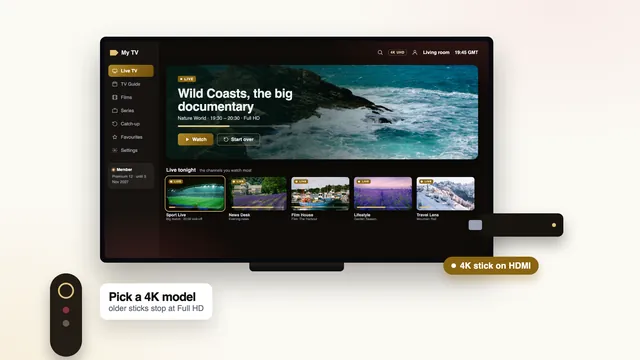
A premium IPTV Firestick setup is judged on the sofa, not in the shop: the model decides whether 4K is possible at all, the player decides how cleanly the stream is decoded, and three display settings decide whether a 50-frame match or a 24-frame film looks the way it was made. This guide takes them in the order you meet them, from the box to the first evening.
Which Fire TV suits a premium IPTV Firestick setup
Amazon’s Fire TV devices share similar names, and two questions sort them: can the model send a 4K picture, and can it install a player from outside the Appstore?
| Fire TV device | Highest picture | HDR formats | Player from outside the Appstore | Wired connection |
|---|---|---|---|---|
| Fire TV Stick Lite and basic HD sticks | Full HD (1080p) | No 4K HDR | Yes, on Fire OS | Amazon’s Ethernet adapter |
| Fire TV Stick 4K | 4K UHD | Dolby Vision, HDR10, HDR10+, HLG | Yes, on Fire OS | Amazon’s Ethernet adapter |
| Fire TV Stick 4K Max | 4K UHD | Dolby Vision, HDR10, HDR10+, HLG | Yes, on Fire OS | Amazon’s Ethernet adapter |
| Fire TV Cube | 4K UHD | Dolby Vision, HDR10, HDR10+, HLG | Yes, on Fire OS | Socket built into the current model |
| Recent models running Vega OS | Varies | Varies | No (Appstore only) | Read the listing |
On a 4K television, choose the 4K, the 4K Max or the Cube. The 4K Max and the Cube have quicker processors, which you feel when scrolling a guide that holds thousands of channels, and the current Cube has its own Ethernet socket. A first-generation 4K stick still plays 4K HDR, though its menus are slower and its storage fills sooner.
A Lite or basic stick makes sense for a bedroom or kitchen set that is Full HD anyway. It plays HD and Full HD well; it simply cannot send 4K, so on a large 4K screen it leaves the best sources on the table. We sell no stick and no app: the access is the login, and it behaves the same on every model above that runs Fire OS.
Installing the player with Downloader
About 2 minutes after payment, the welcome message lands on WhatsApp or in your inbox. Keep it open on your phone: it carries the server URL, your username and password for the Xtream Codes login, the M3U and programme-guide links, the end date and the player’s download link, which is why no code or address appears on this page. Let a new stick finish its own updates first, because a restart halfway through an install means starting again.
The Amazon Appstore does not list IPTV Smarters Pro. Downloader, a free Appstore app by AFTVnews, fetches it instead, once the stick allows Downloader to install apps. Follow this order and the permission switch will be there when you look for it:
- From the Fire TV home screen, open Find, search for « Downloader » and install the app published by AFTVnews.
- Open Settings, choose My Fire TV, then Developer options. If that entry is missing, open About on the same screen, highlight the stick’s name and press Select seven times in a row; a message confirms you are now a developer, and the entry appears.
- Inside Developer options, open Install unknown apps and set Downloader to On.
- Start Downloader. Let it reach your files if it asks, and close its welcome notes.
- In the address box, enter the download address from your welcome message, character for character, and press Go.
- When the installer appears, choose Install, then Done. Downloader then offers to delete the install file: choose Delete, since the file has done its job and only takes space.
- Hold the Home button, choose Apps, find the player and move it to the front row so it is one click away.
Afterwards, close the door you opened
Once the player works, set Downloader back to Off under Install unknown apps. The player keeps working; the switch only decides whether Downloader may install anything else, and you can turn it on again for a newer version.
Only install what came with your login
Forums and video comments are full of codes and install files for « premium » players. Unknown install files can carry malware, and a look-alike app can collect whatever you type into it. Use the address from the welcome message, check the developer name (Tech Smarters Private Limited for Smarters Pro), and ask the team before opening anything that looks odd. Everything the premium IPTV membership sends is the same on a stick as on any other screen: the setup guide for every screen covers the steps common to all devices, and the guide to player apps and their look-alikes helps you choose between players.
Typing the login with the remote
In the player, pick the Xtream Codes option (some versions call it « Login with Xtream Codes API »). Copy three fields from the welcome message: username, password and server URL. The URL keeps its http:// at the front and its port number at the end, written like http://your-server:port. Letters are case-sensitive, and a trailing space in any box will be refused.
If a profile name is requested, any word will do. Channels load first, then the library and the week-long guide. The first load takes a minute or two on a stick, because the guide covers seven days of programmes for every channel; later starts are quicker.
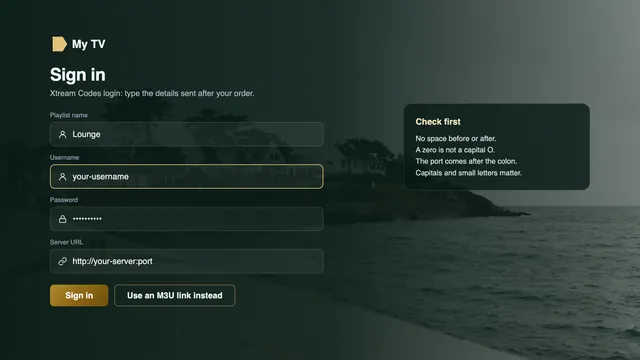
The on-screen keyboard is slow for long passwords. Amazon’s Fire TV app on a phone, joined to the same Wi-Fi, lets you type on the phone’s keyboard instead, which saves time and typing mistakes.
If programme times show an hour out, the cause is the switch between GMT and BST: correct it once with the player’s « EPG time offset » setting. When the Xtream login is not an option, the guide to the M3U playlist link shows the other way in.
Display settings that decide the picture
Three settings under Settings › Display & Sounds › Display decide whether the stick passes on what the stream contains, and one under Audio decides the sound. Amazon moves things a little between software versions, but the names have stayed close to these.
| Setting | Choose | What it does |
|---|---|---|
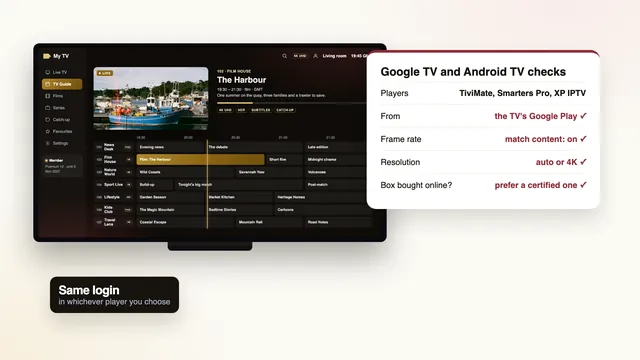
| Video Resolution | Auto (up to 4K UHD) on a 4K TV | Sends 4K when the TV accepts it; a 4K TV stuck at 1080p usually means the wrong HDMI socket or cable |
| Match Original Frame Rate | On | Lets the player switch the output to 50 Hz for 50-frame sport and 24 Hz for films, when the player asks |
| Dynamic Range Settings | Adaptive | Sends HDR only when the stream is HDR; « Always HDR » converts every SDR channel and dulls its colours |
| Audio › Surround Sound | Best Available | Passes surround and Dolby Atmos to a soundbar that reads them, when the source carries them |
Why frame matching is worth a black flash
A Fire TV left at 60 Hz shows a 50-frame match by repeating one frame in every five: ten doubled frames each second, which you see as a faint, regular hitch whenever the camera follows play. Matching the frame rate removes it, at the cost of a second or so of black screen while the TV locks on to a new rate, and only when you change channel.
If 4K or HDR is greyed out
The stick offers only what the TV reports it can accept. A greyed-out 4K option points to the HDMI socket or the cable: move the stick to a socket marked 4K, HDR or HDCP 2.2, switch on that socket’s enhanced mode in the TV’s menu, and use the extender that came in the box rather than an old cable. The 4K and HDR guide, link by link names those modes on Samsung and LG sets.
Ethernet or 5 GHz Wi-Fi: keeping the stream fed
A stick lives behind the television, about the worst spot in the room for Wi-Fi: the panel and the wall around it soak up signal. The short HDMI extender in the box moves the stick a few centimetres clear of the metal and helps more than its size suggests, so use it.
For a premium IPTV Firestick picture in 4K, plan on about 25 Mb/s steady, measured on the stick itself (Full HD asks for roughly 10, HD for roughly 5). Two routes get you there reliably:
- Ethernet. Amazon’s Ethernet adapter goes in line with the stick’s power cable and adds a wired socket good for about 100 Mb/s, four times one 4K stream. The current Fire TV Cube has a socket built in.
- 5 GHz Wi-Fi near the router. The 5 GHz band is quicker and less crowded than 2.4 GHz, but it fades fast through walls. It usually copes when the router is a room away or closer; beyond that, a powerline adapter or a mesh point near the TV does more than a new stick would.
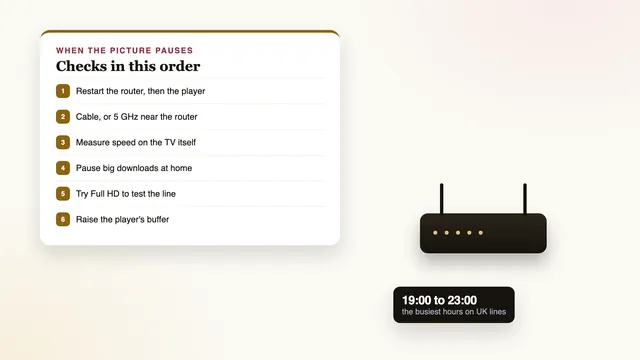
Measure with a speed-check app from the Appstore, on the stick, around 21:00 on a weekday and on a Saturday evening. Lines in the UK slow most between about 19:00 and 23:00, so a lunchtime figure flatters yours.
Power matters too. Use the mains adapter supplied with the stick, not a USB socket on the TV: many TV sockets give too little current, and an underpowered stick slows down or restarts without warning. If the picture still pauses after these steps, the buffering guide lists the fixes in order.
Storage and memory: a tidy stick plays better
Fire TV sticks have little storage, and the system takes much of it. When space runs low, the guide data and cache have nowhere to go and menus and playback slow down. Free space shows on the Storage line of the About screen, inside My Fire TV.
- Empty the player’s cache from Settings › Applications › Manage Installed Applications: select the player and choose Clear cache. Do not choose Clear data, which removes the login and your favourites.
- Uninstall apps you no longer open, including players you installed once and set aside.
- Delete install files left in Downloader, from its Files section.
- Skip « cleaner » and « booster » apps: they take memory to free memory and add little else.
- Restart the stick once a week, from Settings › My Fire TV › Restart, or by holding Select and Play/Pause together for about five seconds.
Keep Fire OS current as well; the update check sits in the same About menu. A stick that has not updated for months is the first suspect when something that used to work starts misbehaving.
Your premium IPTV Firestick checks for the first evening
See what your setup does at the busiest hours while the welcome message is fresh. Between 19:00 and 23:00:
- Open a channel or film marked 4K and read the player’s information panel: it should say 3840 × 2160, with HDR where the title offers it.
- Watch ten minutes of live sport on a 50-frame channel and follow the ball through a long pass: the movement should stay even, with no regular hitch.
- Open the 7-day guide and compare the programme on screen with the time shown; if it is an hour out, set the EPG time offset.
- Go back a day or two in catch-up on a channel that keeps it, and play something.
- Take a speed reading on the stick while nothing else streams at home, then again with the household’s usual evening load.
- If you chose Premium 12 Duo, play both screens at the same time for a few minutes.
If one item fails, write to the team in English, at any hour, with the stick model, Ethernet or Wi-Fi, the speed you measured and the channel and time; a phone photo of the player’s information panel saves several messages. The contact page lists WhatsApp and email, or open the WhatsApp help chat straight away.
One stick or two: choosing the plan
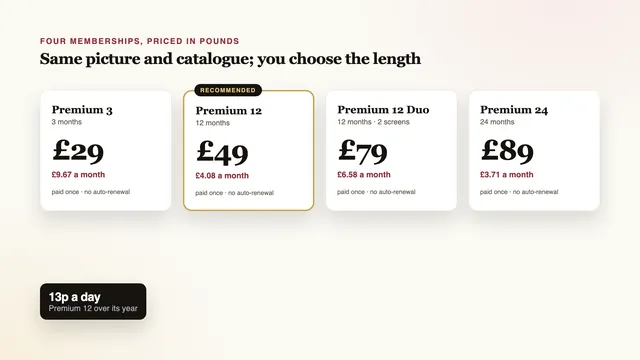
Every plan carries the same channels, library and picture quality, so a premium IPTV Firestick in the lounge gets exactly what a TV app gets. For one stick we suggest Premium 12: a single payment of £49, which spread over 12 months is 13p a day. Premium 12 Duo at £79 plays two screens at the same time, for a second stick upstairs, for example. Premium 24 at £89 lowers the monthly price to £3.71, and Premium 3 at £29 is the short option.
The payment is a single one in pounds, by card or PayPal, and nothing renews: access ends on the date in the welcome message. The full comparison of the four plans sets out lengths and end dates, and the Buy buttons on the home page open WhatsApp with the plan already written.
Frequently asked questions
Is a Fire TV Stick Lite good enough?
For a Full HD television, yes: it plays HD and Full HD well, including 50-frame sport where the source allows it. It cannot send 4K, so on a 4K set a Fire TV Stick 4K, 4K Max or Cube is the better match.
Why is the player not in the Amazon Appstore?
IPTV Smarters Pro is not listed there, so it is installed with Downloader, which is. The download link comes with your login; we publish no code or install file on the site.
Developer options is missing from my Fire TV. What now?
In Settings › My Fire TV, open About and press Select on the stick’s name seven times; Developer options then appears. If the stick runs Vega OS, apps from outside the Appstore cannot be allowed at all, and the team can suggest another screen you already own.
Should I choose « Always HDR » for a better picture?
No. It turns every SDR channel into an HDR signal, which usually looks dull and greyish. Adaptive switches to HDR only when the title is HDR, which is what you want.
Can one premium IPTV Firestick login play on two sticks?
Premium 3, Premium 12 and Premium 24 play on one screen at a time. For two sticks playing together, Premium 12 Duo allows two screens at the same time within one household.
What happens on the stick when my membership ends?
The player stays installed but stops loading channels on the end date, because nothing renews by itself. If you order again, a new login arrives and you type it into the same player; nothing needs reinstalling.