Guide
Premium IPTV 4K HDR: what the source, the screen, the cable and the player must do
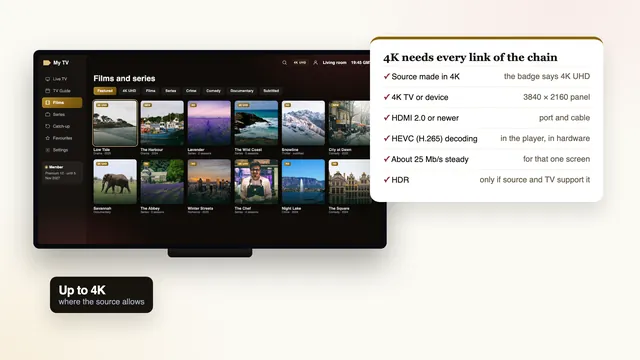
Premium IPTV 4K HDR is a chain, not a switch: a 3840 × 2160 picture reaches your sofa only when every link between the source and the panel can carry it, and HDR appears only when the title was graded in it and your TV reads that format. This guide takes the links one at a time, gives the check you can make at home for each, and shows how to tell what is really on the screen.
The premium IPTV 4K HDR chain, link by link
Think of the picture as a relay from the source to the servers, your broadband, the player, the HDMI socket and finally the panel. Each runner passes on only what it received, and none can add detail that was never filmed, which is why a 4K television fed by an HD channel shows an HD picture, stretched to fill the screen.
Our half of the relay is identical on every plan: pictures arrive in HD or Full HD, and in 4K UHD, 3840 by 2160 pixels, wherever the production was made in 4K. The rest of the premium IPTV membership, from the programme guide to help in English, is on the home page. This guide covers the half in your lounge.
| Link | What 4K asks of it | How to check it at home |
|---|---|---|
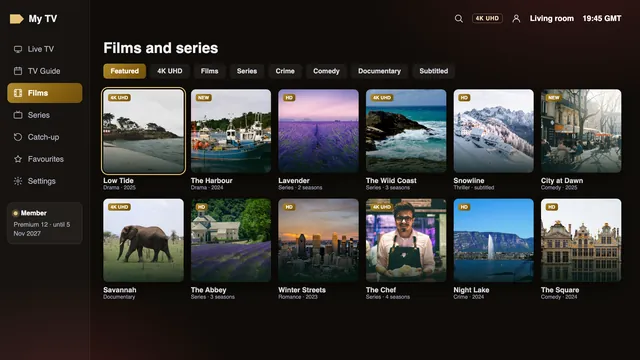
| Source | A channel or title produced in 4K, not an HD feed scaled up | The 4K or UHD badge in the player’s list, then the resolution in its information panel |
| Broadband | Around 25 Mb/s for each 4K screen, held all evening | A speed reading taken on the TV or stick, between 19:00 and 23:00 |
| Player and device | Hardware decoding of HEVC (H.265) | The decoder option in the player; smooth motion with no dropped frames |
| HDMI socket | HDMI 2.0 or newer, with its full-bandwidth mode switched on | Labels by the sockets (4K, HDR, 60 Hz or HDCP 2.2) and the TV’s input settings |
| HDMI cable | Rated for 18 Gb/s or more | « Premium High Speed » or « Ultra High Speed » printed on the box or the label |
| Television | A 4K panel and, for HDR, the format the title uses | The model’s specification sheet: 3840 × 2160 and the list of HDR formats |
A source produced in 4K comes first
Most programmes are made, and so broadcast, in HD or Full HD. 4K turns up where the production itself was in 4K, on some channels and on part of the film and series library. We never put a number on it: the count moves with the schedule, and the badge on the title you want tells you more than any total.
Upscaled is not 4K
Every 4K television upscales. It spreads a 1920 × 1080 picture across its 3840 × 2160 pixels and sharpens the edges as it goes. A good set does this well, and steady Full HD often looks better than a 4K stream that keeps stalling. Still, an upscaled picture carries a quarter of the real detail, and no setting on your side can put the missing three quarters back.
Frame rate counts as much as pixels
Where the source allows, live sport runs at 50 frames a second; films are shot at 24 and much else at 25. Fast play drawn 50 times a second can look more fluid in Full HD than a slower picture in 4K, so judge a sports channel on movement before sharpness. The guide to channel groups and their picture badges shows where the 4K labels sit in the list.
The television, the HDMI socket and the cable
The television
A 4K panel is the obvious requirement. Find the model number on the rear sticker or in the TV’s « about » menu and look up its specification: it should say 3840 × 2160 and list the HDR formats the set accepts, a list that matters further down.
Which HDMI socket
On some sets, mostly older ones, only one or two sockets are full HDMI 2.0 ports with the 18 Gb/s that 4K HDR at 50 or 60 frames calls for, usually marked 4K, HDR, 60 Hz or HDCP 2.2. Use one of those and switch on its full-bandwidth mode. Samsung calls it Input Signal Plus, in the External Device Manager menu; LG calls it HDMI Ultra HD Deep Colour; other makers use names such as « enhanced format ». Without it, a 4K device may settle for 1080p or refuse HDR. A player installed on the TV’s own system skips this link altogether.
The cable
HDMI cables are sold in certified categories, and here, for once, « premium » is a tested label rather than a slogan. « Premium High Speed » means certified for 18 Gb/s, enough for 4K HDR at 60 frames; « Ultra High Speed » means 48 Gb/s, which matters for 120 Hz gaming rather than television. An old plain « High Speed » cable, rated for about 10 Gb/s, gives itself away through white sparkles, brief black screens or a device that quietly drops to 1080p.
Soundbars and receivers in the path
If the picture passes through a soundbar or AV receiver on its way to the TV, that device must pass 4K and HDR too, and older ones pass Full HD only. Plug the stick straight into the TV instead and send the sound back through its eARC or ARC socket.
HEVC decoding and a steady 25 Mb/s
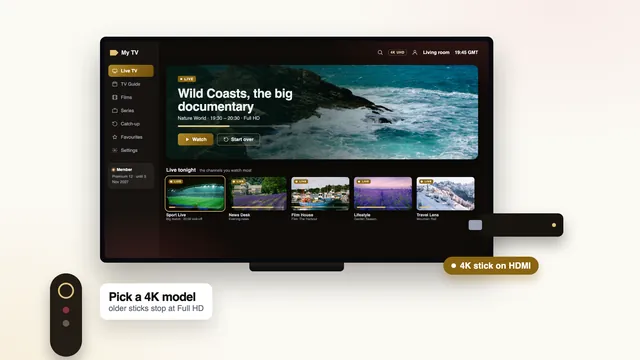
4K streams are compressed with HEVC (H.265), which needs roughly half the data of the older H.264 for a similar picture. A chip with a built-in HEVC decoder unpacks it easily; a device doing the work in software drops frames, runs warm and lets the sound drift ahead of the picture. Current Fire TV 4K sticks, certified Google TV and Android TV devices with 4K output, Apple TV 4K and most recent smart TVs have that decoder, so leave the player’s decoding on « hardware » or « automatic ».
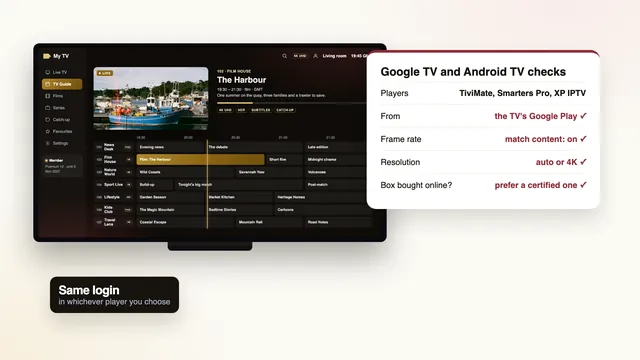
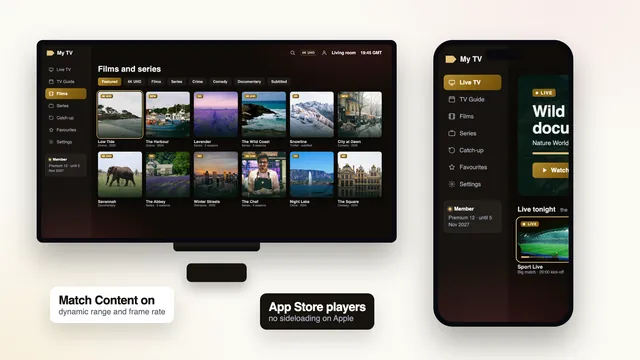
The device guides go further: Fire TV models and their display settings, Android TV and Google TV screens and boxes and iPhone, iPad and Apple TV with Match Content. For the app itself, see which player reads the login on each device.
Each 4K picture then draws about 25 Mb/s for as long as it plays, measured on the device that shows it. A stick behind the TV, two walls from the router, may receive a fraction of your contract speed, and the busy evening hours, roughly 19:00 to 23:00, slow many lines further. Steadiness matters most: a line swinging between 60 and 12 Mb/s averages well yet stalls 4K at every dip. Ethernet holds best; 5 GHz Wi-Fi does well within a room or so of the router.
| Playing at the same time | 4K | Full HD | HD |
|---|---|---|---|
| One screen | 25 Mb/s | 10 Mb/s | 5 Mb/s |
| Two screens (Premium 12 Duo) | 50 Mb/s | 20 Mb/s | 10 Mb/s |
Two 4K pictures at once, on Premium 12 Duo, therefore need about 50 Mb/s on top of the home’s other use. The four plans compared side by side sets out lengths and screens; if the picture pauses rather than looking soft, the guide to pauses and buffering takes the fixes in order.
HDR: the source must carry it, the TV must read it
HDR widens the gap between the darkest and brightest parts of the picture and carries more colour. It belongs to the source: no setting on your side turns an SDR channel into a real HDR one. The TV then has to understand the format the title uses, and four are in common use.
| Format | What it carries | Samsung TVs | LG OLED and QNED |
|---|---|---|---|
| HDR10 | The base format: one set of brightness data for the whole title | Yes | Yes |
| HDR10+ | Brightness data adjusted scene by scene | Yes | Check the model’s specification |
| Dolby Vision | Scene-by-scene data in Dolby’s own format | No | Yes |
| HLG | A format designed for live broadcasts | Most 4K HDR models | Most 4K HDR models |
For premium IPTV 4K HDR viewing on a Samsung set, that means HDR10 and HDR10+ titles show in HDR, and a Dolby Vision title depends on how the stream was made. When it also carries an HDR10 layer, the TV shows that. When it does not, the usual sign is a picture tinted purple and green: the set is receiving data it cannot read. LG OLED and QNED sets read Dolby Vision directly.
Let the device follow the source
On a stick or box, set the dynamic range to follow the content: « Adaptive » on Fire TV, « Match Dynamic Range » on Apple TV, the matching option on Google TV devices. Forced HDR converts every SDR channel and leaves most of the catalogue flat and greyish. Let the device match the frame rate too, so 50-frame sport reaches the panel at 50 Hz.
Dolby Atmos sound follows the same rule. It plays only on titles that carry it, through a player that passes it on, to a soundbar or receiver that decodes it, usually over eARC; otherwise you hear the ordinary surround or stereo track.
How to tell what you are actually watching
Two places on screen answer two different questions, and only one of them tells you about the stream.
The player’s information panel: what the stream contains
Most players have a stream information screen, opened from the info or menu button during playback. Look for three lines: the resolution (3840 × 2160 for 4K, 1920 × 1080 for Full HD), the codec (HEVC or H.265 for most 4K) and the frame rate (50, 25 or 24). Some players add an HDR flag or the colour format. In VLC on a computer, the same details sit under Tools › Codec Information, or Window › Media Information on a Mac. This panel is the only reliable proof of a premium IPTV 4K HDR picture.
The TV’s banner: what the device is sending
Press the TV’s info button or open its input menu, and many sets show the incoming signal, for example 3840 × 2160 at 50 Hz, with an HDR or Dolby Vision badge when the format changes. That describes what your stick or box sends, not the stream: a stick set to send 4K all the time reports 4K on an HD channel too, because it upscales first. Trust the banner for HDR and frame rate, and the player’s panel for resolution.
A check with your own eyes
Pause a detailed scene, such as grass, brickwork or the weave of a jacket. True 4K texture holds up close to the screen; upscaled HD turns into smooth patches with over-sharpened edges. An even, rhythmic judder on a slow pan points to a frame-rate mismatch, not to a lack of pixels.
Why « 8K » claims are marketing
An 8K picture is 7680 × 4320 pixels, four times 4K and sixteen times Full HD. To watch one you would need a source produced in 8K, an 8K television, an HDMI 2.1 port and cable, a device that decodes 8K and far more broadband than a 4K stream uses. At the time of writing, live channels produced in 8K are almost non-existent, and none of the Fire TV sticks, nor most Android boxes, send 8K at all.
So when a page promises « 8K movies » or « 8K channels », ask which titles, produced how, played on what. The « 4K » in our own name marks our ceiling. What we send goes up to 4K UHD on the sources produced in 4K; the rest is HD and Full HD, stated plainly so that you can plan around it.
Promises that a picture will never pause, or that everything is in 4K, deserve the same reading: nobody outside your home controls its connection, and not every channel is filmed in 4K. The guide to judging reviews and seller claims lists other questions worth asking.
A five-minute check before you order
- Confirm a 3840 × 2160 panel and its HDR formats from the TV’s model number.
- Use a full-bandwidth HDMI socket with its enhanced mode on.
- Check the cable’s category, or use the one that came with a 4K stick.
- Measure about 25 Mb/s, steady, on the device itself in the evening.
- Confirm hardware HEVC decoding on the device that plays the stream.
- Let the device match dynamic range and frame rate rather than forcing HDR or 60 Hz.
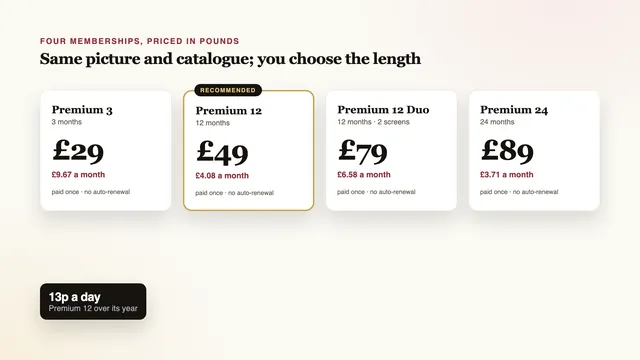
If all six pass, pick a length in the plans section of the home page. Channels, library and picture are the same in every plan, so length is the only real choice. Premium 12, the one we suggest, comes to £4.08 a month over its 12 months (£49 in one payment); Premium 24 at £89 brings the monthly figure down to £3.71; Premium 3 at £29 covers three months. Nothing renews by itself.
The setup guide from welcome message to first picture covers the login on each kind of screen. If one link of your chain is in doubt, ask the team before paying, with the TV model, the device and the speed you measured. The 7-day refund rule applies when the login never reaches you, or when no screen at home shows a picture even with the team’s help; it does not cover a line slower than the 25 Mb/s explained here.
Frequently asked questions
Is every channel in 4K?
No. Each channel or title arrives in the quality it was produced in: HD, Full HD, or 4K UHD where it was made in 4K. A badge in the player’s list marks the 4K ones, and the information panel confirms it once playback starts.
My TV banner says 4K, but the picture looks soft. Why?
The banner reports what your stick or box sends over HDMI, and many devices upscale everything to 4K before sending it. Open the player’s information panel instead: if it reads 1920 × 1080, the source is Full HD and the TV is simply filling its screen.
Does a Samsung TV play Dolby Vision?
No. Samsung sets support HDR10 and HDR10+, not Dolby Vision. A Dolby Vision title shows in HDR10 when the stream carries that layer too; LG OLED and QNED sets read Dolby Vision directly.
Is HDMI 2.1 needed for premium IPTV 4K HDR?
No. HDMI 2.0 carries 4K with HDR at 50 or 60 frames per second, which covers television and films. HDMI 2.1 matters for 120 Hz gaming and 8K, and a live stream uses neither.
Will I get 8K pictures?
No. The ceiling is 4K UHD, on sources produced in 4K, which is why « 4K » and not « 8K » is in our name. Live channels made in 8K are almost non-existent at the time of writing.