Guide
Premium IPTV Android TV guide: Google TV sets, boxes, players and the settings behind a steady picture
Premium IPTV Android TV viewing starts with an advantage most smart TVs lack: the players come straight from Google Play, so nothing needs sideloading and updates arrive by themselves. What still decides the picture is the hardware underneath, a handful of display settings and how carefully the login is typed, and this guide covers each in the order you meet it.
Google TV and Android TV: one system, two home screens
Android TV is the system Google makes for televisions. Google TV is the newer home screen built on top of it, with recommendations in rows and a profile for each person. For a player app the difference hardly matters: both use Google Play, both run the same players and both have the display settings this guide relies on. What does differ is the version underneath, which decides where some of those settings live.
To find yours, open Settings › System › About. On most sets the line « Android TV OS version » gives the number, and version 12 or later has the frame-rate option described further down. The same screen shows a security patch level: a date that tells you how recently the maker updated the set.
This guide covers both sets with Google TV built in and external devices on an HDMI socket, and says where a setting moves.
Premium IPTV Android TV players from Google Play
Because the players are in Google Play, installing one is like installing any other app: open Google Play (or the Apps tab on Google TV), search for the name, check the developer, install. Five players read the login well on a television.
| Player | How it logs in | On screen | Worth knowing |
|---|---|---|---|
| TiviMate | Xtream Codes or M3U | A full guide grid, like a TV listing | Built for remotes on Android TV and Fire TV; the base app is free, extra features are paid |
| IPTV Smarters Pro | Xtream Codes or M3U | Live TV, films, series and a guide | Developer: Tech Smarters Private Limited; optional in-app « Premium » |
| XP IPTV | The details in your welcome message | Live TV, films and series | Another layout to set beside the first two |
| VLC | M3U link | A plain list, no guide grid | Free; handy for checking one stream, less so for daily viewing |
| Kodi | M3U link plus the guide link | A full guide through the add-on | Free; runs the login through the « PVR IPTV Simple Client » add-on |
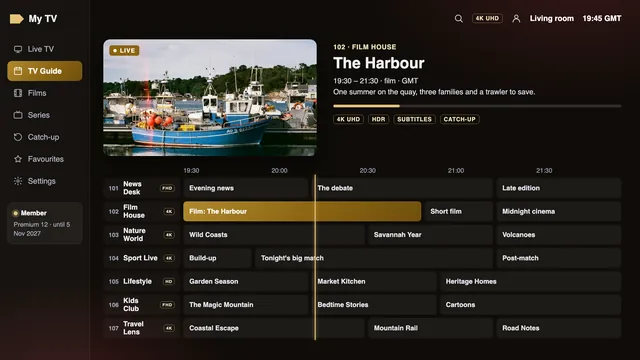
TiviMate and Smarters Pro are the usual first choice on a television: both take the Xtream Codes login in three fields and show the 7-day guide as a grid, channel by channel and hour by hour. VLC earns its place as a second app for one reason: if a channel misbehaves in your main player, opening the same stream in VLC tells you within a minute whether the stream or the player is at fault.
Our player app guide sets them side by side on every kind of device, and the M3U playlist guide explains when the playlist link is the better login, Kodi included.
Certified or uncertified: checking a box before it comes home
Many « IPTV boxes » sold on online marketplaces are Android boxes. Some carry Android TV or Google TV certification; many do not, and the difference is more than a logo. A certified device ships with Google Play, has passed Google’s compatibility checks and receives security updates from its maker. An uncertified box often runs an old, phone-style version of Android, with Google Play missing or added later by the seller, and no updates at all.
A box adds nothing to the channels, either. The access is the login; the box only plays it. The one reason to buy a box is a better picture or a better connection than your television gives you, and that comes from the specification, not from the word « IPTV » in the listing.
| What to check | Certified Android TV or Google TV | Typical uncertified box |
|---|---|---|
| Home screen | The Android TV or Google TV interface, built for a remote | A phone-style launcher, sometimes with a mouse pointer |
| Google Play | There from the start, with automatic app updates | Missing, or added by the seller |
| Security updates | Issued by the maker; the patch date shows under Settings › System › About | Rare or none; the patch date is often years old |
| 4K output | 4K at 60 Hz on 4K models, with HEVC decoded in hardware | Often claimed; check the HDMI version and the decoder |
| Network | Ethernet and 5 GHz Wi-Fi on most models | Varies; 2.4 GHz-only Wi-Fi is common on low-priced boxes |
Whatever the box, five specifications decide whether it suits a membership like ours:
- an Ethernet socket and 5 GHz Wi-Fi;
- 2 GB of RAM or more;
- 4K output at 60 Hz over HDMI 2.0;
- HEVC (H.265) decoded by the chip rather than in software;
- Android TV or Google TV certification, so that updates keep coming.
If a listing does not state these plainly, treat the box as uncertified. We neither sell nor recommend any box, and the team will not name one, but they will read a specification you send them and say whether it covers HD, Full HD or 4K.
Entering the login
The welcome message reaches WhatsApp or your inbox about 2 minutes after you pay. In TiviMate, choose Add playlist, then Xtream Codes; in Smarters Pro, choose the Xtream Codes login. Then type the three details: the server URL, with http:// and the port as in http://your-server:port, the username and the password. Each field is case-sensitive, so if the player refuses, look first for a capital letter or a trailing space.
Typing a long password with a remote is tedious. Google’s TV remote on a phone lets you type with the phone’s own keyboard while phone and television share the Wi-Fi network, and it turns the job into a few seconds.
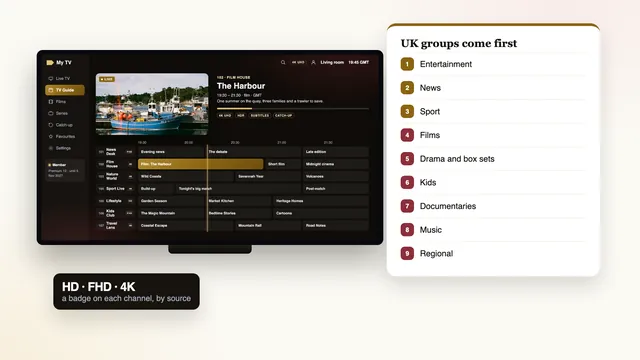
The channel groups load first, UK groups at the top, then the 7-day guide; give the guide a minute or two on the first run. If programme times sit an hour out, adjust the player’s « EPG time offset ». The guide itself follows UK clocks: GMT through the winter, then BST, which begins on the last Sunday of March and ends on the last Sunday of October.
Kodi takes the login differently. Install « PVR IPTV Simple Client » from Kodi’s add-on list, paste the M3U link into its playlist setting and the guide link into its EPG setting, then restart Kodi. It works well once set, but takes longer than the two players above.
Display and frame-rate settings
An external Google TV or Android TV device decides what it sends to the television; a set with Google TV built in decides what its own panel shows. The settings differ a little between the two, and both matter for a premium IPTV Android TV picture.
On an external device
Open Settings › Display & Sound › Advanced display settings. Names vary by maker and version, but three options are common:
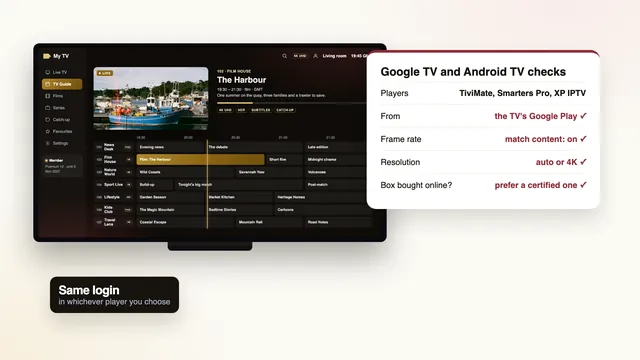
- Match content frame rate (Android TV 12 and later): choose Always. The default, Seamless only, switches only when the TV can do it without blanking, which most cannot between 50 and 60 Hz, the very switch UK sport needs. Always may blank the screen for a moment when the rate changes.
- Resolution: the highest your TV accepts, normally 4K at 60 Hz on a 4K set, leaving the frame-rate option to change the refresh rate when a 50-frame channel starts.
- Dynamic range or HDR format: set it to follow the content, so SDR channels stay SDR and HDR titles switch to HDR.
The player has to ask for the change. In Kodi, set « Adjust display refresh rate » under Settings › Player › Videos; TiviMate and several other players have their own automatic frame-rate option in their playback settings. In the same playback settings, leave the decoder on hardware or automatic: a software decoder is a fallback for unusual files and stutters on 4K HEVC channels on all but the fastest devices.
On a TV with Google TV built in
There is no HDMI step, so the resolution is the panel’s own. Picture mode does more of the work: choose a Standard or Movie mode rather than a Vivid one, and set motion smoothing to taste, off for films, where it gives the « soap opera » look, and low for sport if you like it. The set moves into HDR on its own whenever an HDR title starts and the format is one it reads. Which formats those are, and how to read the TV’s info banner, is covered in the guide to 4K and HDR conditions.
Network: Ethernet first, 5 GHz second
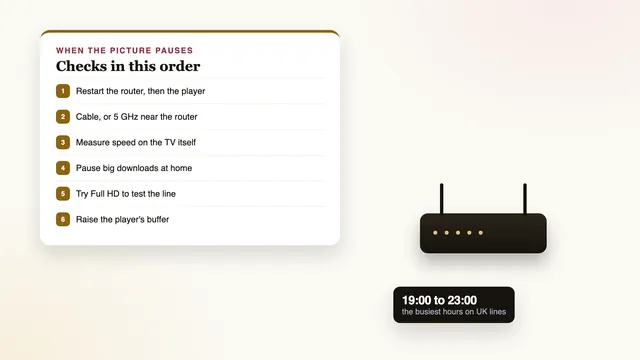
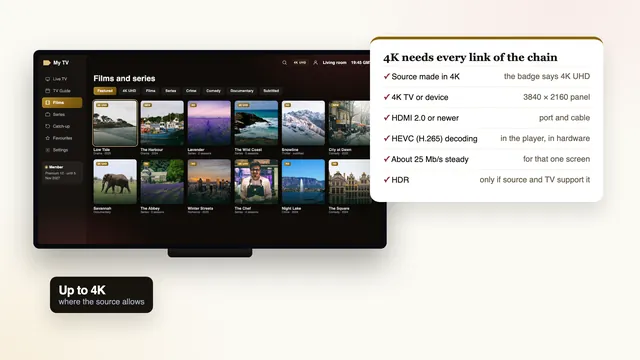
Many Google TV sets and certified boxes have an Ethernet socket. Use it wherever a cable can reach: a wired link holds its speed through the evening in a way Wi-Fi in a busy street rarely does. Each 4K screen wants about 25 Mb/s, Full HD about 10 and HD about 5, steady and measured on the television itself.
On Wi-Fi, join the 5 GHz network, which many routers list separately with « 5G » or « 5GHz » in its name, and keep the router within a room or so of the set. To measure, install a speed-check app from Google Play on the TV and run it between about 19:00 and 23:00, when home lines are at their slowest.
Pauses, as opposed to a soft picture, have their own causes: see the step-by-step buffering fixes.
Updates, and when an external device takes over
System updates close security holes and now and then fix playback problems. On most sets and boxes the check is under Settings › System › About › System update; switch on automatic updates if the set offers them and let it install overnight. Players update through Google Play, so make sure automatic app updates are on in its settings, and when a new problem appears, check the player’s Google Play page for a newer version before anything else.
When a player’s menus slow down, go to Settings › Apps › See all apps, pick the player and press Clear cache. Stop there: Clear data would also wipe the login and the favourites list.
A Google TV or Android TV set is a good place to watch until its hardware or its maker falls behind. A device on the HDMI socket is worth considering when:
- the set no longer receives system updates, or its Android TV version is too old for current players;
- menus and channel changes have grown slow, a sign of too little memory for a large guide;
- 4K channels stutter while their Full HD versions run smoothly, which points to a decoder out of its depth;
- the set has no Ethernet and weak Wi-Fi where it stands, while a device with Ethernet could reach a cable;
- the television is a 4K model with no Google Play at all.
Two kinds of device fit. One is a Fire TV Cube, 4K Max or 4K stick, covered in the Fire TV guide with its install steps and display settings; the other is a certified Google TV device with the specifications listed above. Plug either into an HDMI 2.0 socket with the TV’s enhanced mode on. For Apple screens, see the guide to iPhone, iPad and Apple TV.
The plan, the screens and your first evening
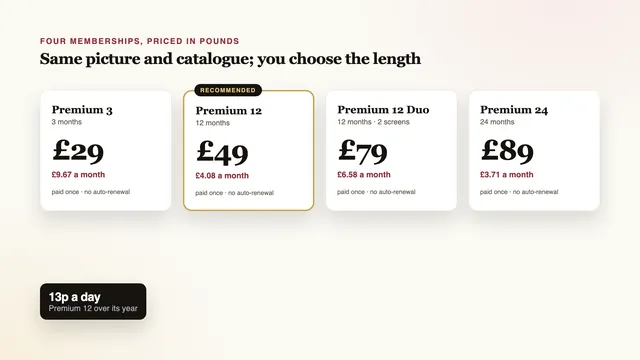
A Google TV set receives exactly what any other screen does: the premium IPTV membership in full lists the channels, the library and the picture by source. For one set we suggest Premium 12, £49 paid once for 12 months. Premium 12 Duo at £79 covers two screens playing together, say the Google TV in the lounge and a stick upstairs. Premium 24 at £89 has the lowest monthly figure of the four, and Premium 3 at £29 covers three months.
On the first evening, give your premium IPTV Android TV setup the same scrutiny you would give a new television: a 4K title with its information panel open, a 50-frame match with the frame-rate option on Always, one channel’s guide against the clock, a programme from catch-up and a speed reading between 19:00 and 23:00. Anything that does not hold up is worth a message while it is fresh.
A single card or PayPal payment covers the whole term, and the membership stops on the end date shown in your welcome message. Choose a plan on the home page, compare lengths on the plans page, follow the setup steps for every screen, and write to the team if a menu on your set looks different from this guide.
Frequently asked questions
Do I need to sideload anything on Android TV or Google TV?
No. TiviMate, IPTV Smarters Pro, XP IPTV, VLC and Kodi are in Google Play, so they install and update like any other app. Sideloading is only needed on devices without Google Play, such as Fire TV sticks.
Is an uncertified Android box a problem?
It can play the login, but it usually runs an old Android version with no security updates, and its Google Play may be missing or added afterwards. For something connected to your home network every evening, a certified Android TV or Google TV device is the safer choice.
Why is the guide an hour out on my premium IPTV Android TV setup?
The guide runs in UK time, and some players slip by an hour when British Summer Time starts or ends. Set the player’s « EPG time offset » to correct it; it is a one-off setting.
Does my Android TV set play Dolby Vision?
That depends on the model, not on Android TV. Check the set’s specification for Dolby Vision, HDR10, HDR10+ and HLG; HDR appears only if the title carries it and the set reads that format.
Can I watch on the TV and a phone at the same time?
That needs Premium 12 Duo, which lets two screens in one home play together. Premium 3, Premium 12 and Premium 24 are single-screen plans, so the phone would take over from the TV rather than play alongside it.
My set is slow and no longer updated. Do I need a new TV?
Not necessarily. A Fire TV 4K stick or a certified Google TV device on the HDMI socket brings current players, hardware decoding and updates to the same panel.