Guide
Premium IPTV iPhone, iPad and Apple TV: Setting Up Each Screen
Premium IPTV iPhone setup needs one player from the App Store and the three login lines in your welcome message, and the same details then open on an iPad and an Apple TV. This guide covers the players Apple’s store carries at the time of writing, a login entered without mistakes, the two Apple TV settings that change how a picture looks, AirPlay against a native app, mobile data, the screen count and what a phone can and cannot show.
Premium IPTV iPhone, iPad and Apple TV: which screen does what
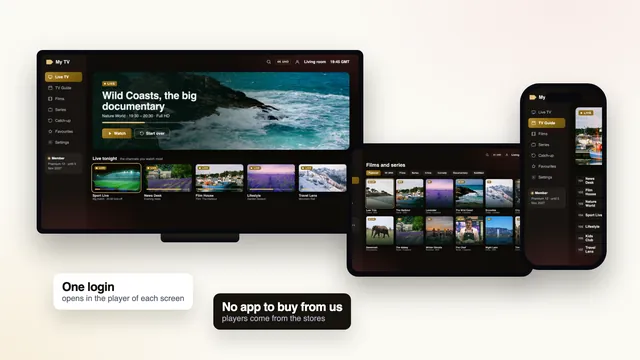
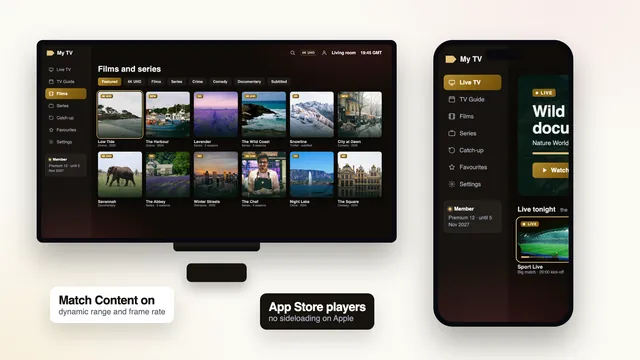
At the time of writing, iPhones, iPads and Apple TVs in the UK take their apps from the App Store and from nowhere else. That keeps the choice short: no file to fetch from a website, no hidden menu, no downloader code. Treat any player offered outside the store as one to leave alone.
The login is identical on every device. Three lines of the welcome message (username, password, server URL) make up the Xtream Codes login; below them sit an M3U playlist link, the programme-guide link and the date the membership ends. Entered in a player, those three lines bring 40,000+ live channels, 120,000 films and series and a guide in UK time, the same on a phone, a tablet and the television.
| Device | Players that take the login | Picture it can show | Good for |
|---|---|---|---|
| iPhone | IPTV Smarters Pro, VLC | HD and Full HD look sharp at this size; 4K adds data, not visible detail | A match in the kitchen, catch-up in bed |
| iPad | IPTV Smarters Pro, VLC | Full HD suits the larger screen | A second room, a long film |
| Apple TV (4K model) | IPTV Smarters Pro, VLC | Up to 4K UHD on titles made in 4K; HDR when the source offers it and the TV supports it | The main television and live sport |
| Apple TV HD (older model) | The same players | Full HD at most | A second set that is not 4K |
| Mac with Apple silicon | Smarters Pro (App Store) | Whatever the Mac’s display shows | A desk or a study |
Players in the App Store at the time of writing
IPTV Smarters Pro
Most people settle on IPTV Smarters Pro, listed as « Smarters Pro » by Tech Smarters Private Limited. It costs nothing to install; an in-app « Premium » is optional and priced by the store. It holds no channels until you give it a login, either the Xtream Codes details or an M3U link.
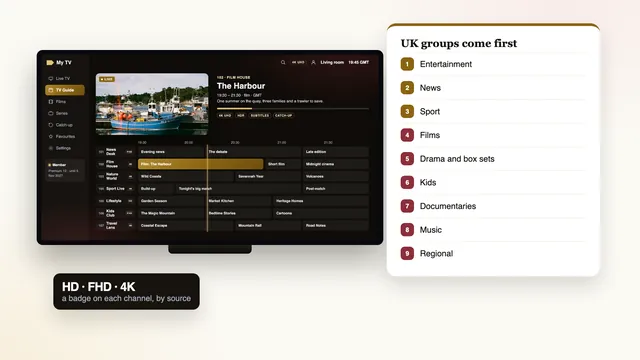
Choose the Xtream option whenever it is offered. The player then fetches the 7-day guide, catch-up and the film library by itself, and groups the live channels by country and then by category, British groups first. Versions exist for iPhone, iPad and Apple TV, so what you learn on the phone looks familiar on the sofa.
VLC
VLC, the free media player many people know from a computer, opens the M3U link on an iPhone or iPad: Network tab, Open Network Stream, paste the link. It lists the channels plainly, without the guide grid, which makes it a useful second opinion: if a channel fails in the main player but plays in VLC, the fault lies in the player’s settings, not in your login. The M3U playlist guide explains when that link is the better choice.
Copies and look-alikes
Search the store for « IPTV player » and dozens of apps appear, some with names and icons close to these two. Before installing any of them, check who made it: the developer’s name sits just under the app’s title. We publish no app for any device, so an app presented as ours is not ours; the guide to choosing a player app compares the options for other screens.
Logging in on an iPhone or iPad
A premium IPTV iPhone login takes about five minutes, most of it spent on the first download. Keep the welcome message open on the same phone, in WhatsApp or your email app: copying is quicker than typing and removes most mistakes.
- Install IPTV Smarters Pro from the App Store, after checking the developer’s name, and open it.
- Choose the Xtream Codes login. The first field wants a label for this profile; « Lounge » or your first name is fine.
- In the welcome message, press and hold the username, choose Copy, come back and paste it. Repeat for the password, then the server URL.
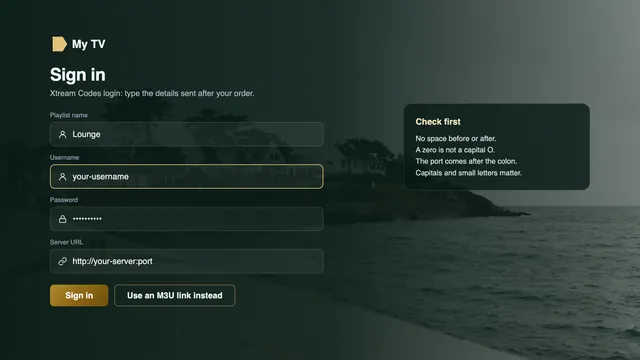
- Leave the server URL exactly as sent,
http://orhttps://and port number included, in the patternhttp://your-server:port. Add nothing to the end, not even a slash. - Sign in and give the first download a moment; later openings are quicker.
- Play a channel from a UK group, then open the guide and check that the programme marked as on air matches the clock.
Three traps on an iPhone keyboard
- The automatic capital. The keyboard likes to capitalise the first letter of a field. Logins are case-sensitive, so one that begins « A » instead of « a » is refused.
- The stray space. A line copied from a chat can carry a space at its end. If the cursor sits one step past the last character, delete it.
- The twin characters. A capital I and a lower-case l, or the letter O and a zero, look alike in some fonts. Pasting removes the doubt.
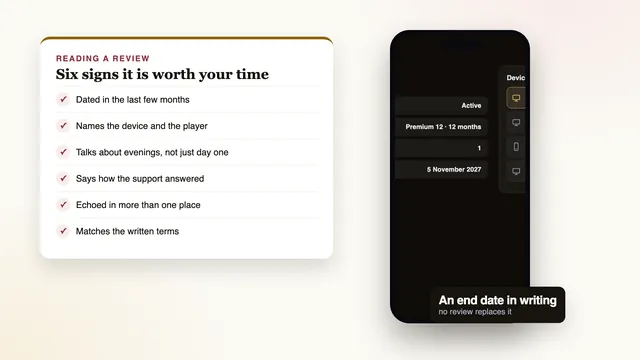
Still refused? Check the end date in the welcome message first. If it is still to come, send a screenshot of the error through the contact page, by WhatsApp or email; the team can often read the cause from it alone.
Apple TV: a player of its own and two settings
The Apple TV has its own App Store. Search for the player there, check the developer’s name and install it; the box keeps its own copy and its own login, so the details go in once more. Typing with the Siri Remote is slow. An iPhone on the same Wi-Fi and signed in to the same Apple Account usually offers a keyboard notification when a text field opens on the TV, and the remote built into the iPhone’s Control Centre does the same.
Match Content: the two switches that matter
On the Apple TV, the path is Settings › Video and Audio › Match Content; turn on both switches there. Left off, the box sends everything in one fixed format and converts whatever does not fit: quietly, but visibly.
| Setting | What it does when on | What you see when it is off |
|---|---|---|
| Match Dynamic Range | Puts the TV into HDR only for titles that carry HDR, and back to standard range for the rest | Everyday channels pushed through an HDR mode they were never made for, often flat or oddly bright |
| Match Frame Rate | Sends each programme at the rate it was made: most British programmes are made at 25 or 50 frames per second, live sport at 50 where the source allows it | A small, regular judder on slow pans and on a ball crossing the screen, as 50 frames are spread over 60 |
Expect a blank screen for a second or two when a film starts or the channel changes: that is the TV switching mode, a sign the settings are working. A set that cannot show a mode stays in the one it can.
What 4K needs on the Apple TV
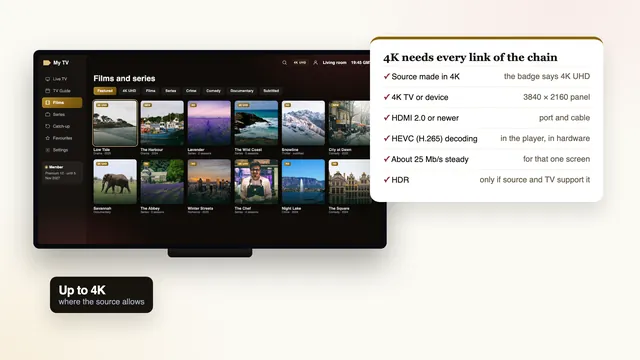
4K needs an Apple TV 4K (the older Apple TV HD stops at Full HD), a 4K television, HDMI 2.0 or later on both port and cable, and about 25 Mb/s for that screen, steady, measured where the box stands. The Apple TV 4K decodes HEVC (H.265) in hardware, so it is rarely the weak link; if your model has an Ethernet port, use it. The guide to 4K and HDR shows how to tell which version is really on screen.
AirPlay mirroring or a native app on the Apple TV
Screen Mirroring copies whatever the iPhone shows onto the television: open Control Centre, tap Screen Mirroring and choose the Apple TV, or a TV with AirPlay built in. The first time, a code may appear on the TV to type on the phone. It takes seconds, which is why people try it first; for a whole evening, a player installed on the Apple TV comes out ahead.
| Mirroring from the iPhone | Player installed on the Apple TV | |
|---|---|---|
| Picture path | The phone plays the channel, then re-sends a copy of its screen over Wi-Fi | The Apple TV fetches the channel itself and decodes it once |
| 4K and HDR | Do not count on either | Up to 4K UHD and HDR where the source offers them and the TV supports them |
| Frame rate | Set by the phone’s screen | Matched to each programme by Match Frame Rate |
| The phone | Tied up all evening and draining its battery; a call or a switch of app can cut the picture | Free, and the Siri Remote runs the guide and catch-up |
| Screens counted | One: the phone’s stream | One: the Apple TV’s stream |
Mirroring still suits a quick moment from catch-up, or a set in another room that accepts AirPlay but has no player of its own. Some players also put an AirPlay button on the video itself, which hands the video over instead of copying the whole screen and usually looks cleaner. It still counts as one screen.
Screens: a phone that plays counts like a TV
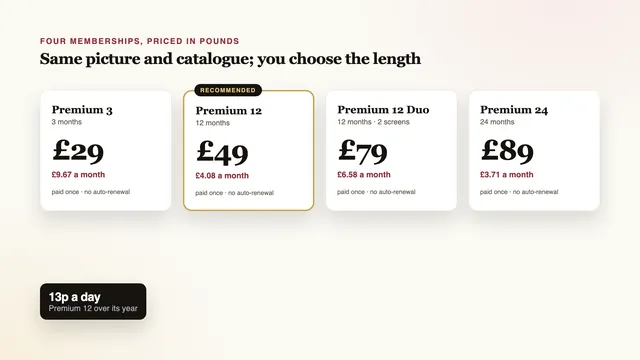
The server counts streams playing at the same moment, not devices signed in. You can install the player on every Apple device in the home and stay logged in on all of them. Premium 3, Premium 12 and Premium 24 allow one stream at a time; Premium 12 Duo allows two.
So on a one-screen plan, the television and your premium IPTV iPhone player take turns: start a match on the phone while the Apple TV is playing and one of the two will stop or refuse to open. Before moving to the TV, swipe the player away in the phone’s app switcher so no stream keeps running in the background.
Mirroring does not change the count either way. If two people regularly watch at once, say the lounge TV and an iPad upstairs, Premium 12 Duo is made for that; the premium IPTV plans page sets the four memberships side by side and the guide to what each plan costs works out the price per screen. The login is for one household: one passed to people outside it, or posted publicly, can be suspended.
Mobile data and Wi-Fi on an iPhone or iPad
At home, a phone needs the same steady speed as any screen: about 5 Mb/s in HD and 10 Mb/s in Full HD. The 5 GHz Wi-Fi band is quickest near the router but fades through walls, so in a far bedroom a mesh point or a powerline adapter does more than any setting on the phone. On mobile data, those speeds become gigabytes:
| Picture | Steady speed | Data in one hour, at most about |
|---|---|---|
| HD | 5 Mb/s | 2.25 GB |
| Full HD | 10 Mb/s | 4.5 GB |
| 4K UHD | 25 Mb/s | 11.25 GB |
Real streams often stay below that ceiling, but a match that runs to extra time can still take a large bite out of a monthly allowance. For premium IPTV, iPhone settings decide whether the phone streams on data at all:
- Settings › Mobile Data: in the list of apps, switch the player off and it streams on Wi-Fi only.
- Wi-Fi Assist, at the foot of that page: when on, the phone moves to mobile data by itself if the Wi-Fi weakens. Turn it off if your allowance is small.
- Low Data Mode, under Mobile Data Options: it trims background use by other apps, but a live channel’s size is set by its source, so do not rely on it alone.
Where a channel is listed in HD and in 4K, choose HD on the phone: on a six-inch screen the two look almost the same, and the HD stream needs a fifth of the speed.
Small screen, big screen: what the picture shows
A phone screen is sharp but small, held at arm’s length. At that size Full HD and 4K are hard to tell apart and a good HD channel already looks clean. What a premium IPTV iPhone picture does well is closeness: a match while the TV is taken, the news over breakfast, catch-up in bed. The iPad sits in between, large enough for Full HD to be worth choosing and for subtitles on the films and series not in English to be easy to follow.
The television is where the higher grades earn their place. On a 4K set fed by an Apple TV 4K, a film produced in 4K can show its full 3840 × 2160 detail, and HDR adds range when the source offers it and the TV supports it. Channels made in HD stay HD: no device, large or small, adds detail the source never had. On the phone, the real limits are battery and heat, so plug it in for a full match.
When an Apple device will not play
Most faults on Apple devices fall into a short list. Work down it in order before changing anything else.
| What you see | Likely cause | What to do |
|---|---|---|
| The login is refused | A character out of place, or the end date has passed | Check the end date, then paste the three lines again |
| The guide is an hour out | The clock or time-zone setting | On the iPhone or iPad, Settings › General › Date & Time › Set Automatically, then the player’s EPG time offset. The guide follows UK time: GMT in winter, BST between the last Sundays of March and October |
| Channels missing after an app update | The list stored on the device is out of date | Reload the channel list in the player’s settings, or sign out and back in |
| Plays on the phone, pauses on the Apple TV | The TV’s connection, not the login | Ethernet if the model has a port; otherwise a mesh point or powerline adapter nearer the box |
| Smooth picture, jerky pans | Match Frame Rate is off | Turn it on under Match Content |
| One device stops when another starts | The plan’s screen limit | Close the player on the device you are leaving |
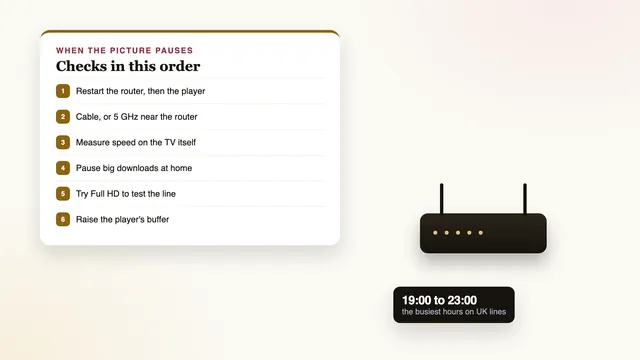
Pauses that come only between about 19:00 and 23:00, worst at weekends and on big match nights, point to the home network at its busiest; the guide to buffering fixes takes them one at a time. Other screens in the house, from a Fire TV to a smart TV, are covered on the premium IPTV setup page.
If nothing on the list settles it, message the team on WhatsApp or write by email, at any hour and in English. If you have not picked a length yet, the four memberships carry the same channels and picture grades, and what a premium IPTV membership includes is set out on the home page.
Frequently asked questions
Do I need a special premium IPTV iPhone app?
No. We publish no app for any device. The login in your welcome message works in players such as IPTV Smarters Pro and VLC, both in the App Store at the time of writing; check the developer’s name before installing.
Can my iPhone and my Apple TV play at the same time?
Only with Premium 12 Duo, which allows two screens at once. Premium 3, Premium 12 and Premium 24 allow one, so the phone and the TV take turns. Both can stay signed in all the time.
Does AirPlay mirroring use a second screen?
No. The phone plays one stream and the TV shows a copy of it, so it counts once. A player installed on the Apple TV still gives the better picture and leaves the phone free.
Do I have to pay for the « Premium » option in IPTV Smarters Pro?
Not for the login to work: the app installs for nothing and accepts the Xtream details. The in-app « Premium » is the app maker’s own option, priced by the store; we do not sell it and receive nothing from it.
Why is the programme guide an hour out on my iPad?
The guide is in UK time, GMT in winter and BST in summer. Make sure the iPad sets its date and time automatically, then use the player’s EPG time offset to move the guide by one hour if it is still out.
Will 4K play on an iPhone?
Where a channel or film was made in 4K, its 4K version is in the list, but a phone screen cannot show the extra detail and that stream needs about 25 Mb/s against 5 Mb/s for HD. Keep 4K for an Apple TV 4K connected to a 4K television.